

Delete a Grade Item
In Brightspace, Grade items can be created manually on the Manage Grades page or created in a graded assessment like an assignment or a quiz.
Note: If the grade item is tied to an assessment like a quiz, the grade item must first be unlinked through the assessment setting page before it can be deleted on the Manage Grades page.
Accessing Grades
In your course, select Grades from the course nav bar. Depending on your course nav bar set up, you might need to select the More drop-down menu.
Image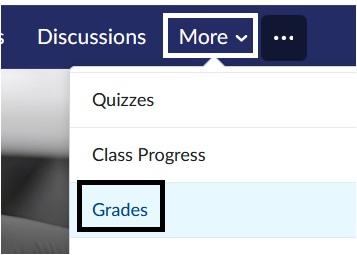
- On the Grades page, select Manage Grades

- On the Manage Grades page, select the More Actions button. Select Delete from the drop-down menu.

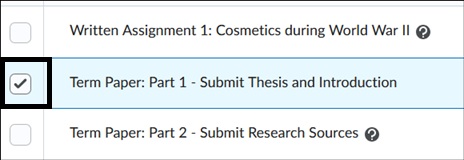
- On the Delete Grade Items and Categories page, select the box to the left of item/column name you would like to delete. Select the Delete button. A Confirmation box will appear, make sure what you have selected is correct and select Delete.

Note: If you cannot select the box, this means the grade item is still tied to the assessment.
Unlinking a Grade item from an Assessment
Go to the assessment tool page, for example if it is an assignment, go to the Assignments Tool page.
Image
Select the drop-down arrow to the right of the Assignment Name > Select Edit Assignment
Image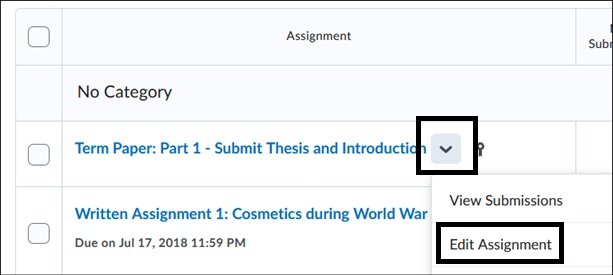
On the Edit Assignment page, select In Grade Book button. Select Not in Gradebook. Select Save and Close. This will unlink the assignment from the grade item. This allows you to delete the grade item but not delete the assignment itself in case you have submissions or want to use it later.
Image
4. Return to Manage Grades > select More Actions > Delete. This will then allow the box to be checked off and deleted.
For more information and assistance, please email Office of Digital Learning - Learning Management System Support at LMS.faculty@jjay.cuny.edu