
Manage Brightspace Notifications
Manage Brightspace Notifications
Access Notification settings
Select your name in the upper right corner. Select Notifications from the drop-down menu.
Image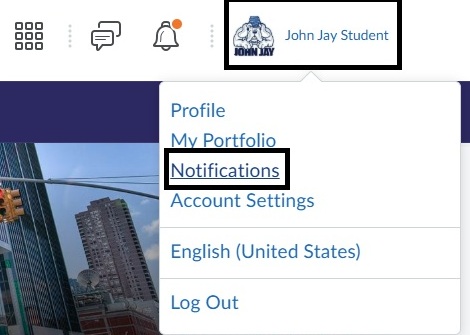
- Under Contact Methods, it will list your CUNY MS365 email.
Note: This email cannot be changed.

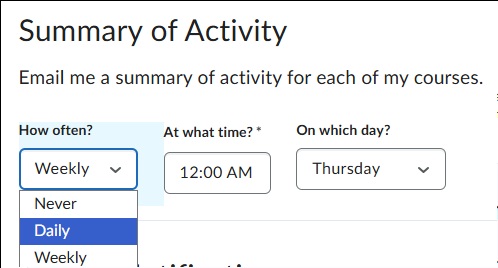
- Under Summary of Activity, select when you want a summary for each course sent via email.
Under Instant Notifications, view which specific notifications you have selected. It is recommended to have all selections checked off, especially Announcement Notifications.
Image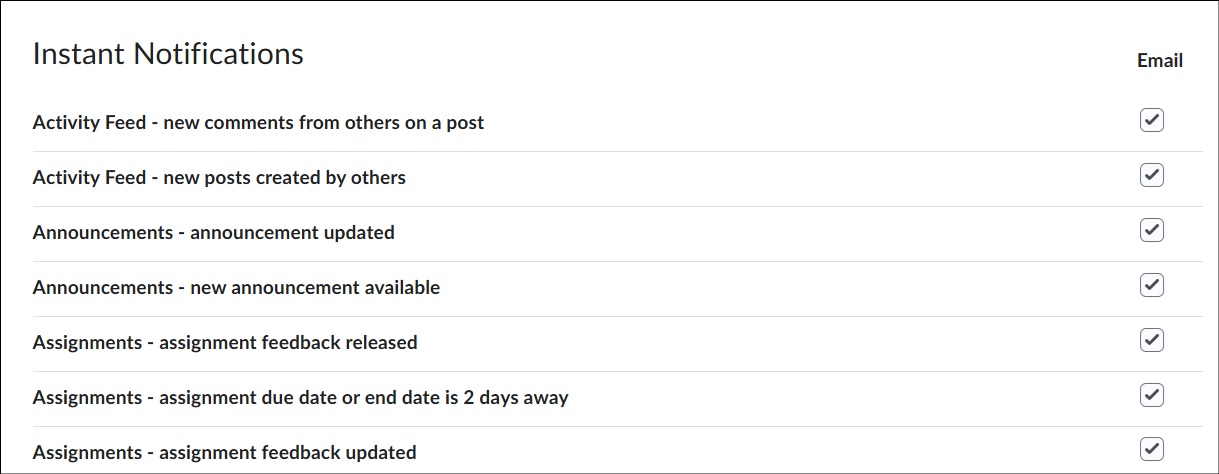
Under Customize Notifications, select Include my grade value in notifications from Grades and Allow future courses to send me notifications, to not miss important course information.
Image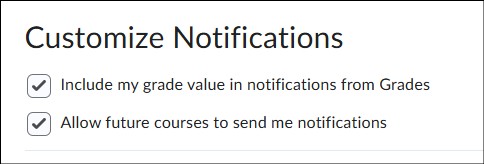
Exclude Some Courses
This setting lets you exclude courses from Brightspace notification emails.
Note: Do not exclude courses you are currently taking. This will result in missing important course notifications. This setting is helpful if you are still receiving notifications from courses you have completed, and you no longer wish to get those notification emails.
On the Notification page, under Exclude Some Courses, select Manage my course exclusions.
Image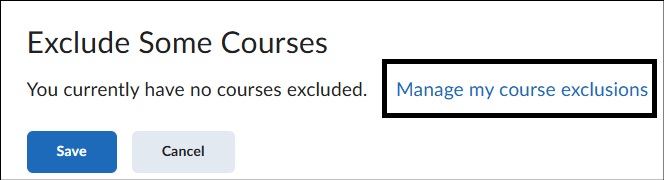
In the pop-up, use the search bar to enter the course name you want to exclude, or find the course in the list below.
Image
- Select the X next to a course to exclude its notifications. The course will be grayed out, with a circular arrow to restore notifications. To restore all excluded courses, select Restore excluded courses.
- Select Close.
On the Notifications page, it will then list the course(s) that have been excluded from notifications. Select Save to hold all changes.
Image
For more information or assistance, please email Office of Digital Learning - Learning Management System Support at: LMS.student@jjay.cuny.edu