

Sent Email Access in Brightspace
In Spring 2025, the CUNY Office of Academic Affairs recently reviewed messaging permissions in the CUNY Brightspace environment following an incident in which where a student sent an unsolicited mass email to the broader university community. While the message was course-related, the ability to message users beyond course rosters raised concerns about platform misuse, data privacy, and operational consistency. As of Friday, April 11th, 2025 the Email button was removed from the top Brightspace navbar. This document provides a workaround for instructors to create a custom course navbar containing a Sent Email option.
Note: This link will show email sent out through all courses in Brightspace. It does not need to be added to every course unless wanted for ease of use.
Access Navigation and Themes
In a course, select Course Admin on the course navbar. Select Navigation and Themes.
Image
- On the Navbars tab, look for the Brightspace Course Navigation - John Jay College - COLLEGE COURSE DEFAULT Navbar. Select the dropdown arrow and select Copy. This will make a copy of the default navbar that you can edit.

Note: if you have already copied your course navbar, work in that copy and do not create another.
- Ensure that the copy of the navbar is set as Active. Otherwise, any changes will not be visible. Select the course navbar from the drop down and select Apply. Once set as Active, click on the course navbar name in blue.


- On the Edit Navbar page, under Links, select Add Links.

On the Add Links pop-up, select Custom Links tab.
Image
- Select Email - Email tool link for instructors. Select Add.

The Email link will appear on the list of links. You can drag and drop it into position where you would like it shown on your course navbar. Select Save and Close to hold changes.
Image
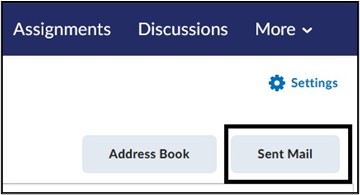
- Select the Email link on the course navbar. Select the Sent email button. This will show all emails sent out from all courses you are added as an instructor.
Important Notes:
- The Email link on the Course navbar is only visible to instructors.
- The Email link should be used to view sent email only. Instructors should use the Classlist to send out emails to their students within the respective course.
For more information and assistance, please email Office of Digital Learning - Learning Management System Support at LMS.faculty@jjay.cuny.edu.