

Hide and Make Visible Grade Items in Student View and Instructor View
To Hide a Grade Item from Learners
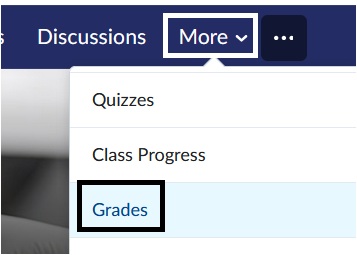
In the Brightspace course, select More on the Course Navbar. Select Grades from the drop-down menu.
Image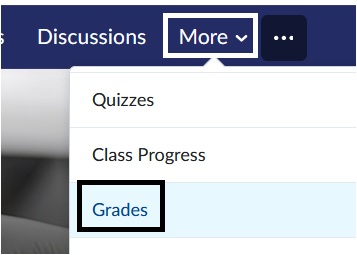
Select Manage Grades from the top menu.
Image
Find the grade item you want to hide. Select the Actions menu (downward arrow) next to the item and choose Hide from Users. Students will no longer see this grade item on their Grades page.
Image
Important Note: If you are hiding a grade item that is associated with the Assignment or Quiz Tool page, students will still be able to see and access their grade within the tool page for that assessment.
Make a Grade item Visible to Students
- In the Brightspace course, select More on the Course Navbar. Select Grades from the drop-down menu.
- Image
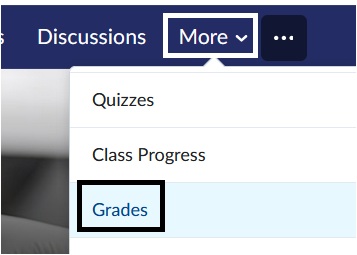
2. Select Manage Grades from the top menu.

3. Find the grade item you want to make visible to learners. Select the Actions menu (downward arrow) next to the item and choose Make Visible to Users. Students will see the grade item on their Grades page.

Important Note: The hidden icon (eye with slash through it) will be visible next to any grade item that is hidden from learners. For more information on Brightspace icons access D2L Brightspace Icon Legend.
To Hide a Grade Item in Instructor View
In the Brightspace course, select More on the Course Navbar. Select Grades from the drop-down menu.
Image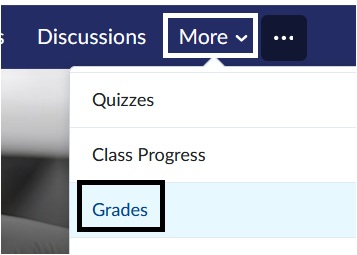
2. On the Enter Grades page, select More Actions. Select Hide/Show Columns.
Image
3. Deselect the Grade item box of the Grade column that you wish to hide from the Grade book. Select Save.
Image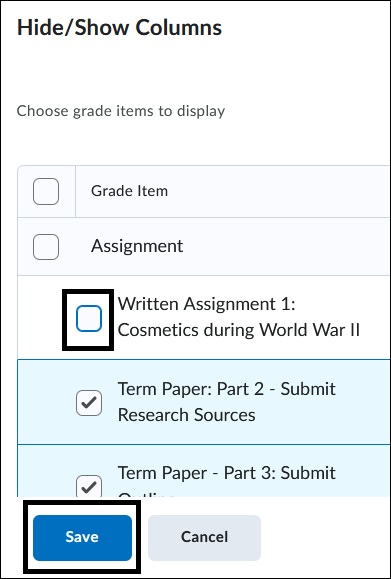
4. A reminder will show at the top of the Grade book page that some grade columns are hidden. Please note that hiding a grade column from instructor view will NOT hide it from learners. Hiding a grade column will NOT remove it from the Final Grade Calculation.
Image
To Make a Grade item Visible in Instructor View
- In the Brightspace course, select More on the Course Navbar. Select Grades from the drop-down menu.
2. On the Enter Grades page, select More Actions. Select Hide/Show Columns.
3. Select the Grade item box of the Grade column that you wish to make visible again from the Grade book. Select Save.
For more information and assistance, please email Office of Digital Learning - Learning Management System Support at LMS.faculty@jjay.cuny.edu