

Financial Aid Services & Resources
Apply Now or Pay Later
To receive student financial aid, you need to fill out a Free Application for Federal Student Aid (FAFSA) every year.
If you are planning to register for classes in Summer 2026, Fall 2026, or Spring 2027, please fill out the 2026-2027 FAFSA beginning on October 1, 2025.
If you are planning to register for classes in Summer 2027, Fall 2027, or Spring 2028, please fill out the 2027-2028 FAFSA beginning on October 1, 2026.
Log on to https://studentaid.gov/h/apply-for-aid/fafsa to complete the FAFSA.
Helpful Info
- The Federal Title IV school code for John Jay College is 002693
- Opt-in to the IRS Direct Data Exchange (DDX)
- You must complete the FAFSA if you plan to apply for a student loan and scholarships
- Filing early Increases your chances of receiving additional awards such as Federal Work-Study
Virtual FAFSA® Workshops
We're conducting virtual FAFSA® Workshops throughout the academic year for current and newly admitted students and their parents. You will learn more about the FAFSA® and have the opportunity to complete your FAFSA® online.
Current students are encouraged to first check availability and register via Navigate EAB if there no availability you are also able to register for a Saturday or evening FAFSA Workshop.
Newly admitted students are encouraged to contact us at financialaid@jjay.cuny.edu for additional assistance.
Check below for a checklist of requirements for FAFSA® assistance.
These workshops are to assist you with completing the 2025-2026 or the 2026-2027 FAFSA®. Please contact a Financial Aid representative at Jay Express or the Financial Aid Office with all other inquiries.
- Login to your Navigate EAB account via https://jjay-cuny.campus.eab.com/
Image
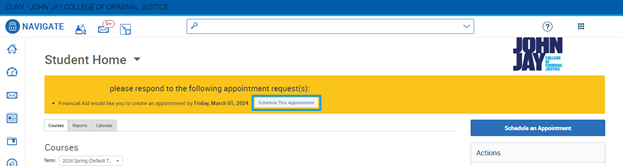
- Once logged into you Navigate EAB account you will see an orange banner inviting you to schedule an appointment with Financial Aid. In this screen you will click on the “Schedule This Appointment” Link.
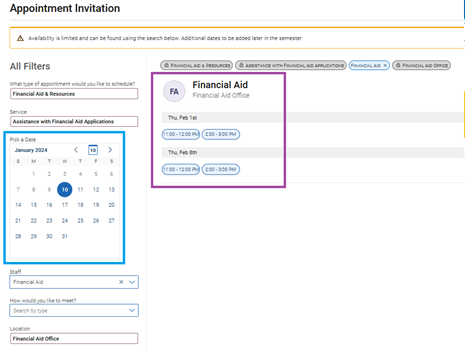
- After clicking on the “Schedule This Appointment” Link you will see a list of the nearest availabilities (purple box, on the right side). You can search for additional availabilities by adjusting the calendar (blue box, on the left side). Select the availability that best works with your schedule. Note: You will not be able to schedule an appointment during any scheduled classes.
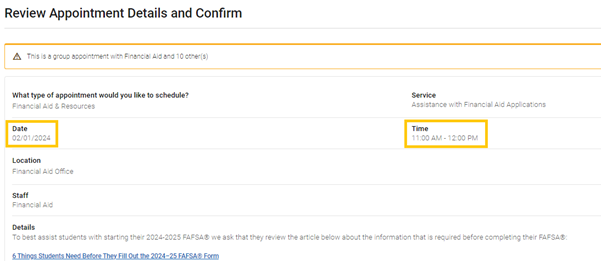
- Once you select an availability you will be taken to the “Review Appointment Details and Confirm” page. At the top of this page please confirm the Date and Time selected previously.
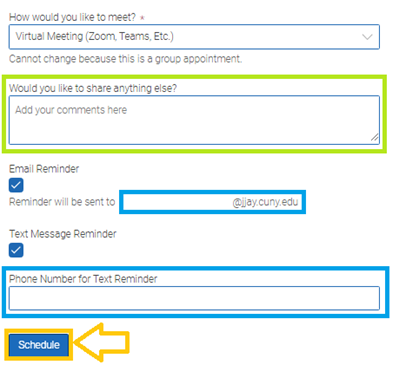
- Once you have confirmed the Date and Time is correct scroll to the bottom of the “Review Appointment Details and Confirm” page. Should you want to share any additional notes please enter them in the “Would you like to share anything else?” textbox (green box). Lastly, please review the email and text message reminder sections (blue boxes). Once confirmed press “Schedule” to complete registration. Note: You will only be able to update your Phone Number as the system will send the reminder to your John Jay Student email.
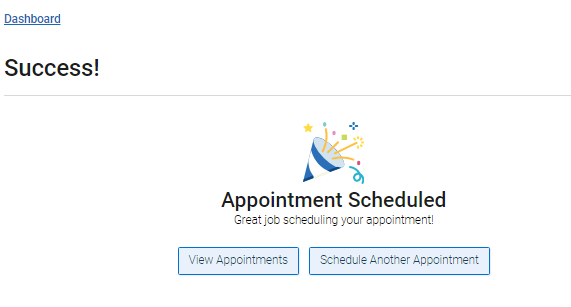
- Once you have completed registration you will see the “Success! Appointment Scheduled” confirmation page. Please remember to attend your scheduled FAFSA® workshop. Should you need to cancel please login to Navigate EAB or email us at financialaid@jjay.cuny.edu.
- Login to your Navigate EAB account via https://jjay-cuny.campus.eab.com/
- Once logged into you Navigate EAB click on "Schedule an Appointment"
Image

- In the next screen click "Request Appointment Time"

- After be sure to indicate Financial Aid & Resources for Appointment Type & Assistance with Financial Aid Applications for Service. Once done click "Find Available Time"
Image

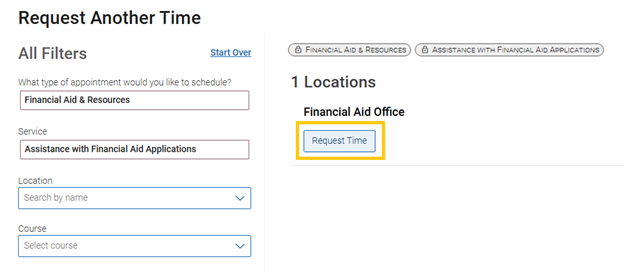
- If times are available you will be able to schedule for one of the selectable time slots. If no availability are shown click "Request Time"
- Lastly please indicate your desired meeting time and click "Request"
Image

We ask that all request have the following information:
Requested Meeting Date and Time: (Example- January 7th at 1pm)
Requested Type / Location: In-Person or Virtual
It is advised that you provide multiple dates and time to assist us in scheduling your request.
Please note we are unable to assist with FAFSA and TAP application completion on Wednesdays.
Requirements for Assistance:
In order to better assist students with completing the FAFSA the Financial Aid Office requests that students bring the following documents to their FAFSA Information Session appointments.
To best assist students with starting their 2026-2027 FAFSA® we ask that they review the article below about the information that is required before completing their FAFSA®:
6 Things Students Need Before They Fill Out the 2026–27 FAFSA® Form
- Yours and a parent’s, if applicable, FSA ID. The FSA ID will be used to confirm your and your parent’s identity and used as an electronic signature to submit your application.
- If you (or a parent) do not already have an FSA ID please visit FSA website to create an FSA ID.
All FSA ID(s) & password(s) must be available prior to your scheduled session.
- If you (or a parent) do not already have an FSA ID please visit FSA website to create an FSA ID.
- Your social security number & your parent(s)' social security number and date of birth
- Your driver’s license number (if you have one)
- Your alien registration number (if you are not a U.S. Citizen)
- Yours and your parent(s)’ or spouse's (if applicable) 2024 Federal and State Tax Returns
- Yours and your parent(s)’ or spouse's (if applicable) 2024 Records of Untaxed Income (if applicable)
- Yours and your parent(s)’ or spouse's (if applicable) 2024 Records of Assets (if applicable)
For a preview of questions asked on the FAFSA please visit the 2026-2027 FAFSA.
To best assist students with starting their 2025-2026 FAFSA® we ask that they review the article below about the information that is required before completing their FAFSA®:
- Yours and a parent’s, if applicable, FSA ID. The FSA ID will be used to confirm your and your parent’s identity and used as an electronic signature to submit your application.
- If you (or a parent) do not already have an FSA ID please visit FSA website to create an FSA ID.
All FSA ID(s) & password(s) must be available prior to your scheduled session.
- If you (or a parent) do not already have an FSA ID please visit FSA website to create an FSA ID.
- Your social security number & your parent(s)' social security number and date of birth
- Your driver’s license number (if you have one)
- Your alien registration number (if you are not a U.S. Citizen)
- Yours and your parent(s)’ or spouse's (if applicable) 2023 Federal and State Tax Returns
- Yours and your parent(s)’ or spouse's (if applicable) 2023 Records of Untaxed Income (if applicable)
- Yours and your parent(s)’ or spouse's (if applicable) 2023 Records of Assets (if applicable)
For a preview of questions asked on the FAFSA please visit the 2025-2026 FAFSA.
*Dependent students are required to bring in all parental information requested. For information regarding dependency please click here.
GRE Fee Reduction Program
The Department of Education prohibits schools from sharing FAFSA information with third parties, even if the schools have the student’s consent.
As a result, Educational Testing Services (ETS) has developed a process that no longer requires students to obtain a copy of their Institutional Student Information Report (ISIR) and a GRE Fee Reduction Certificate from a financial aid administrator. Instead, students will be required to send a copy of their FAFSA Submission Summary and a completed GRE Fee Reduction Request Form to ETS. Students who meet the need-based guidelines will receive a GRE Fee Reduction voucher to take the General Test and/or a Subject Test for 50 percent of the full test fee.
More information about the GRE Fee Reduction process can be found if you click here.
Financial Aid Navigation Resources and Tools
All images below are for demonstration purposes only. Please ensure you are selecting the correct term/semester and/or academic year when navigating the system for requested information.
Login to your CUNYfirst account via https://home.cunyfirst.cuny.edu/
Image
Select Student Center from the drop-down list at the top-center of the page.
Image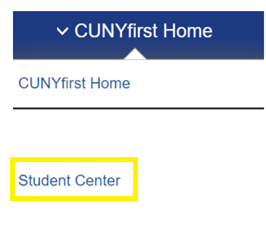
Click the Financial Aid Tile
Image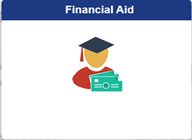
Ensure that the year is set to year required (i.e 2024-25). Once confirmed open the Financial Aid Summary and click Summary
Image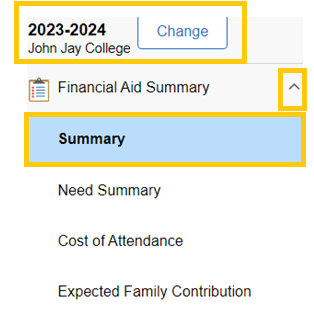
- You will now be able to see your Financial Aid Summary for the selected year or for a particular semester. To view Summary for a specific semester, select that semester by selecting it in the display drop down menu.

Login to your CUNYfirst account via https://home.cunyfirst.cuny.edu/
Image
Select Student Center from the drop-down list at the top-center of the page.
Image
Click the Financial Aid Tile
Image
Ensure that the year is set to year required. Once confirmed open the Awards section on the left side of the page and click Accept/Decline
Image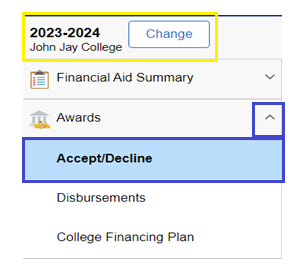
Click the Pencil icon on the left side to accept/ decline or edit the amount of your Direct Loan
Image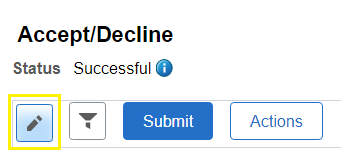
Borrowers may be required to sign a Master Promissory Note (MPN) and complete Direct Loan entrance counseling prior to the disbursement of a loan. To complete these steps please visit https://studentaid.gov/.
Login to your CUNYfirst account via https://home.cunyfirst.cuny.edu/
Image
Select Student Center from the drop-down list at the top-center of the page.
Image
Click the Financial Aid Tile
Image
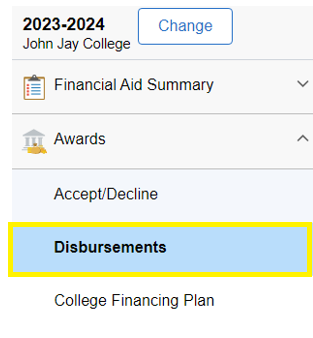
- Open the Awards section on the left hand side of the page and click Disbursements
Login to your CUNYfirst account via https://home.cunyfirst.cuny.edu/
Image
Select Student Center from the drop-down list at the top-center of the page.
Image
Click the Financial Account tile to view your account balance
Image
- Visit Student Forms and log in using your CUNYfirst credentials.
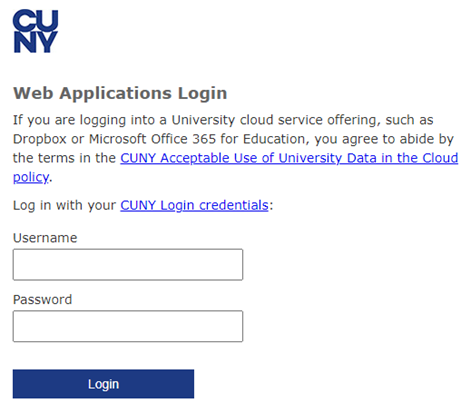
- Complete Two-Step Authentication
- Once logged into the Student Forms platform press the Manage Request button Then the “+” next to EFC Contribution Appeal
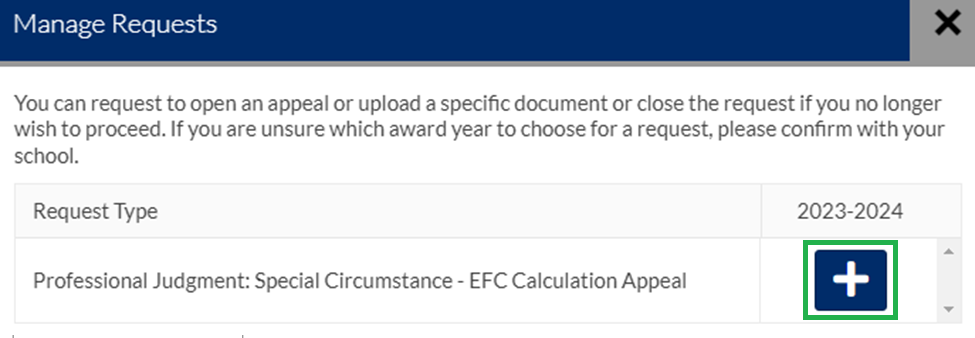
- If you have successfully completed these steps you will be asked to provide an explanation of your request before the request is initiated.
Login to your CUNYfirst account via https://home.cunyfirst.cuny.edu/
Image
- Select Student Center from the drop-down list at the top-center of the page.
- Click on Task and Holds
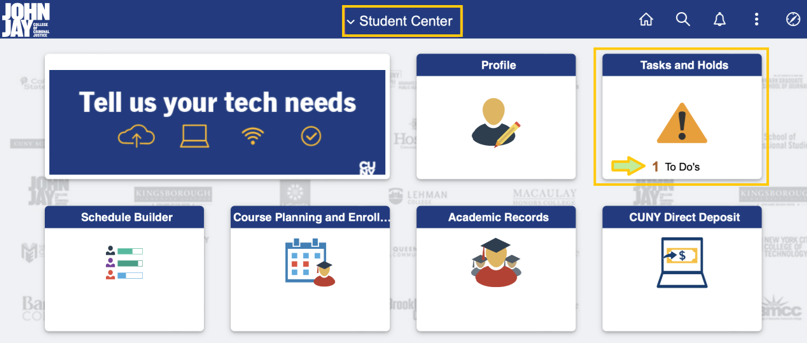
- From the To Do List on the left side panel click on the specific Task for additional information on how to complete it
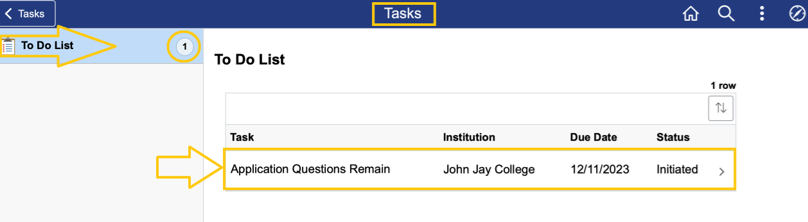
Note: This is an example of one Task that could appear on your CUNYfirst account. Please review any Task that appears in this section as it can impact your Financial Aid eligibility.
Login to your CUNYfirst account via https://home.cunyfirst.cuny.edu/
Image
- Select Student Center from the drop-down list at the top-center of the page.
- Click on Task and Holds
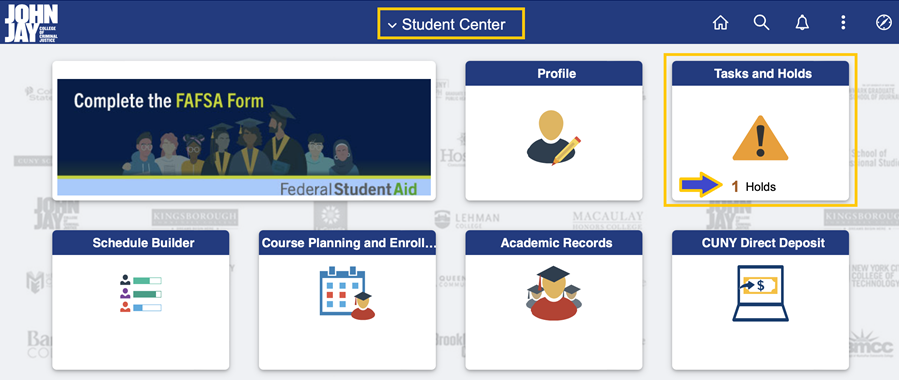
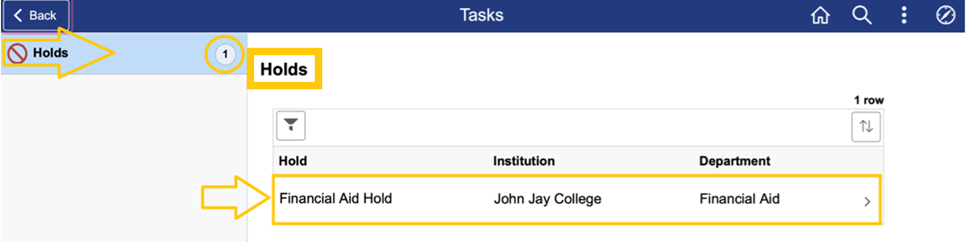
- Click on the Hold to view details.
Login to your Navigate EAB account via https://jjay-cuny.campus.eab.com/
Image
- Once logged into you Navigate EAB account you will see an orange banner inviting you to schedule an appointment with Financial Aid. In this screen you will click on the “Schedule This Appointment” Link.
- After clicking on the “Schedule This Appointment” Link you will see a list of the nearest availabilities (purple box, on the right side). You can search for additional availabilities by adjusting the calendar (blue box, on the left side). Select the availability that best works with your schedule. Note: You will not be able to schedule an appointment during any scheduled classes.
- Once you select an availability you will be taken to the “Review Appointment Details and Confirm” page. At the top of this page please confirm the Date and Time selected previously.
- Once you have confirmed the Date and Time is correct scroll to the bottom of the “Review Appointment Details and Confirm” page. Should you want to share any additional notes please enter them in the “Would you like to share anything else?” textbox (green box). Lastly, please review the email and text message reminder sections (blue boxes). Once confirmed press “Schedule” to complete registration. Note: You will only be able to update your Phone Number as the system will send the reminder to your John Jay Student email.
- Once you have completed registration you will see the “Success! Appointment Scheduled” confirmation page. Please remember to attend your scheduled FAFSA® workshop. Should you need to cancel please login to Navigate EAB or email us at financialaid@jjay.cuny.edu.
To verify New York State student aid applicants’ income and tax return information, HESC runs a process with the New York State Department of Taxation and Finance (NYS Tax) called the income verification program (IVP). During this process, student, spouse and parent information provided on the TAP application is compared with tax return data on file with the State to confirm whether income taxes were filed for the requested tax year and if the correct income is being used to determine the award.
If income verification is attempted but a match is not made on the student, spouse and/or parent tax return information, the applicant will receive an email with instructions to log into their HESC account to review their TAP application for any errors that may have caused income verification to fail. Below are the instructions for applicants to make corrections to their application to resolve issues with failed income verification.
Student Instructions
- Visit: https://hesc.ny.gov/myaccount
- Click on the “Review My NYS Financial Aid Information” to login
- Enter your HESC User ID, PIN, last 4 of your Social Security Number
- After you have logged on to the HESC system click “Details” next to the last TAP activity date.
- On the details page, go to “Review/Update” button where you can make changes to the TAP application requesting review
What to do if Information is Correct
If the information on your TAP application looks correct and there seem to be no edits required, then you (your spouse if any) and/or parent(s) should contact the New York State Department of Taxation and Finance to ensure that a tax return was received for the applicable Tax Year. Their contact information can be found online at https://www.tax.ny.gov/help/contact/contactus-ind.htm.
| 1. Student/Spouse information | Review the Last Name and Social Security or Tax-filer Identification Number (TIN) provided for you (your spouse if any) matches exactly what is listed on your (your spouse if any) New York State Tax Returns for the applicable tax year | ||
| 2. Student/Spouse tax return type | Ensure that your (your spouse if any) New York State Tax Return type (IT-201 or IT- 203) matches exactly the response provided on your TAP application. | If you (your spouse if any) did not file tax returns for the applicable tax year, then you may correct the form type to “Will not file any taxes.” | |
| 3. Parent information | Review the Last Name and Social Security or Tax-filer Identification Number (TIN) provided for the parent(s) and ensure it matches exactly what is listed on their New York State Tax Returns for the applicable tax year | ||
| 4. Parent tax return type | Ensure that your parent(s) New York State Tax Return type (IT-201 or IT- 203) matches exactly the response provided on your TAP application. | If your parent(s) did not file tax returns for the applicable tax year, then you may correct the form type to “Will not file any taxes.” |
Contact us
-
Virtual Front Desk
Wednesdays - 12:00pm to 2:00pm
*Virtual Front Desk will be unavailable on 12/16, 12/23 & 12/30
-
Addresses
Be sure to only mail information to our mailing address
Mailing: 524 West 59th Street, BMW 607, New York, NY, 10019
Physical: 555 West 57th Street, 6th Floor, New York, NY, 10019
Office HoursMonday - Thursday | 9:00a to 4:45pFriday | 9:00a to 2:45p