

Resources for Web Editors
User Guide
Orientation sessions share how to start reviewing, editing and updating your content. You will receive login information after you attend an orientation session.
Register for an orientation session
- September 9, 11-11:45 am
- October 21, 11-11:45 am
- December 2, 11-11:45 am
The Communications & Marketing team is working to ensure that this website is more accessible for users and complies with NY State and federal accessibility standards.
The site was audited and the web team addressed back-end issues. We need content owners' help addressing front-end content issues: to meet these requirements, every webpage and file must be reviewed and remediated if needed.
These sessions provide an introduction to the site review process. (They do not include information on how to make files accessible. See #4 in this User Guide for info on creating accessible materials.)
Register
- Wednesday, October 14, 11am
- Thursday, October 29, 11am
- Monday, November 9, 11am
Thursday, November 19, 11am
The Communications & Marketing team is working to ensure that this website is more accessible for users and complies with NY State and federal accessibility standards.
The new standards apply to webpages, images, hyperlinks, PDF, Word, Excel, Google Slides and video files on the site and linked to from other sites or platforms (like Dropbox or Google Drive).
The web team addressed back-end issues.This work was completed by the original April 24, 2026 federal deadline.
We need content owners' help addressing front-end content issues: to meet these requirements, every webpage and file must be reviewed and remediated as needed. Register for an introduction to the process at #2 in this User Guide.
Here's a step-by-step guide:
- Login to the website.
- An accessibility checker installed on the site automatically flags inaccessible content or potentially inaccessible content that should be checked manually.
The checker will flag items that content editors (you) are not able to address. You're not responsible for addressing them. If you're unsure, please check in with Aaron Fineman at afineman@jjay.cuny.edu.
- A red exclamation point indicates an issue to resolve. Click on it. A pop-up window will identify the issue and provide options for addressing it.
- A yellow question mark indicates an issue to check manually. Click on it. A pop-up window will identify the possible issue and provide options for addressing it.
- If your manual check indicates that it's not an issue, click "Mark as OK."
- If your manual check indicates it's an issue you can fix, make the fix.
- Additionally, a red box on the bottom right corner of the page lists all the issues identified on the page. Click on it to open the list and click on each issue to see options for resolving it.
- Address accessibility issues as needed:
- Hyperlinks - see guidelines at #13 in this User Guide
- Images - see guidelines at #22 in this User Guide
- Word - info on accessible Word files
- Excel - info on accessible Excel files
- PowerPoint - info on accessible PowerPoint files
- Videos - info on accessible videos
- PDFs - nfo on accessible PDFs
- Google Sheets, Docs & Slides - Install Grackle Docs, click Extensions, click Grackle Docs & follow the prompts
- Cloud Drives - all materials linked from Google Drive or Dropbox must also be accessible
- Lists - see instructions at #6 in this User Guide
- Headings (H2, H3, H4) - see instructions at #6 in this User Guide
- Tables - require a header row - see instructions at #6 in this User Guide
The checker may also flag items that it identifies as potentially inaccessible that are actually accessible.
There is no "one-click" solution to making a document accessible. It is almost always easier to create an accessible document than make an existing document accessible (and sometimes it's impossible).
In some cases, you may be able to copy and paste the content in a document into a web page instead of making it accessible retroactively. You can find info on creating/editing a webpage at #11 & #12 in this User Guide.
PDFs are especially challenging to remediate and are problematic beyond their lack of accessibility. Before attempting to remediate an existing PDF, consider if the material in the PDF can be copied and pasted into a web page or a Word doc. (Read about why PDFs should be avoided.)
Save your work by scrolling to the top of the page and clicking “Save Layout.” If a red exclamation alert still appears, it was not addressed successfully. Troubleshoot using the info at #4 in this User Guide. If you need assistance, please email Aaron Fineman at afineman@jjay.cuny.edu.
This is a significant, institution-wide effort and new territory for most of us. Our goal is to be careful and methodical, and we’re grateful for your patience and collaboration. Please send your questions to Aaron Fineman at afineman@jjay.cuny.edu.
Here's some info on creating accessible materials:
- CUNY Computer & Information Services offers trainings on creating accessible materials
- Hyperlinks - see guidelines at #13 in this User Guide
- Images - see guidelines at #22 in this User Guide
- Word - info on accessible Word files
- Excel - info on accessible Excel files
- PowerPoint - info on accessible PowerPoint files
- Videos - info on accessible videos
- PDFs - info on accessible PDFs
- Google Sheets, Docs & Slides - Install Grackle Docs, click Extensions, click Grackle Docs & follow the prompts
- Cloud Drives - all materials linked from Google Drive or Dropbox must also be accessible
In some cases, you may be able to copy and paste the content in a document into a webpage instead of making it accessible retroactively. You can find info on creating/editing a webpage at #11 & #12 in this User Guide.
There is no "one-click" solution to making a document accessible. It is almost always easier to create an accessible document than make an existing document accessible (and sometimes it's not possible).
PDFs are especially challenging to remediate and are problematic beyond their lack of accessibility. Before attempting to remediate an existing PDF, consider if the material in the PDF can be copied and pasted into a web page or a Word doc. (Why PDFs should be avoided.)
1. Lists without bullets
To create a list without bullets:
- A) Click on the icon with two bullets and two lines (next to the link icon), select “No bullets” and type your list.
or
- B) Type your list in the text editor as a list (or convert them to a list) by clicking the icon with two bullets next to two lines (next to the link icon), highlight the list and select the “No bullets.”
2. Headings
Editors are not necessarily required to add headings to webpages. However, headings help organize webpage content into sections, much like chapter titles and subheadings in a book, allowing readers to quickly scan the page and understand the structure of the information. Headings also create meaningful page structure that supports accessibility, as screen reader users often navigate webpages by headings. Using headings properly helps all users better access and understand content.
The page title is Heading 1. Headings 2-6 should be in descending hierarchical order:
- Heading 2 indicates a major section
- Headings 3-6 indicate subsections within major sections
To add a heading to your content:
- Type the text that will be the heading
- Highlight that text
- In the text editor menu, click where it says “Paragraph” and you will see a dropdown menu appear showing H2-H6. (remember to use headings in descending hierarchical order)
If you’re using an accordion block, you have two options, depending on your content needs:
- A) Add a H2 subtitle above the accordion block and use H3 headings for each individual accordion item H3’s
or
- B) Do not add a H2 subtitle above the accordion and use H2 headings for each individual accordion item
3. Tables
Table headers label the rows and columns in a table, helping users understand the organization of the data. Proper table headers also improve accessibility by allowing screen readers to correctly interpret and announce table information.
- The first row on the tables must contain the header row content.
- If you would like to include a link in a table cell, the formatting is “Text [URL]”
Example: John Jay College Homepage [https://www.jjay.cuny.edu/]
4. Anchor Tags (aka Jump Links)
- To direct visitors to a specific content block on a page, add an anchor link to the content: type a word (or short text with hyphens-for-spaces) to identify the accordion into the “Anchor ID” field.
- To link to an anchor tag, type the url of the page that the anchor is on, add a # and type the anchor tag text immediately following the #. If you used more than one word in your anchor ID, you must replace the spaces with hyphens in the url (examples) will take you to the first accordion “Web Editor Orientation” on this page. If the anchor ID was “web-editor-orientation” the link would end with #web-editor-orientation.)
We updated our content management system and editing the site changed in four ways.
1. Toolbar
- The “paste from Word” button was removed due to redundancy.
- “Add link” and “remove link” were merged into a single button.
Both options appear when the button is clicked.
(Old toolbar)

(New toolbar)

2. Add, edit and remove links
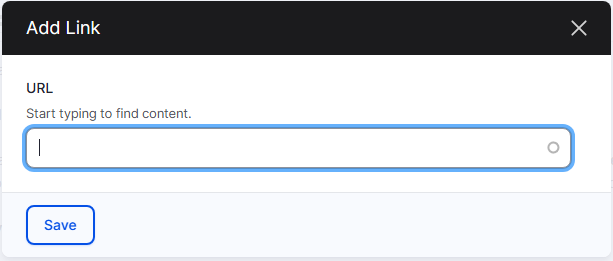
Old process - Click "link" on the toolbar, insert the URL into the dialog box that appears and click "Save."
To view or edit the link in the dialog box, click the link then the "Link" button. To remove the link, click the link then the "Unlink" button.
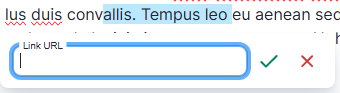
New process - Click "link" on the toolbar and a panel with a green check and red cross mark will appear. Add a link by populating the link field and clicking the green check. To remove, edit or view the link, click on the link. On the panel that appears, click "edit," "unlink" or “open link in a new tab.”
3. Adjusting multimedia
Old process - editors were not able to adjust embedded media.
New process - A dedicated media toolbar appears when you add an item or click on an item that was already added. You can align it left, right or center; wrap or break the text; add a caption or link; or resize.
We can collaborate with you on assessing, deleting, adapting and creating content for your section[s] of the site. Please email Kira Poplowski, chief communications officer, at kpoplowski@jjay.cuny.edu to schedule.
Please note that we do not have a copyeditor and are unable to copyedit your text. To ensure accuracy, please use a free platform like Grammarly to check your text.
You can also use AI, like ChatGPT, to create web-friendly copy. Try a prompt like "Redraft this copy so it's more web-friendly and concise, using bullets and lists where appropriate," then copy and paste your text into the chatbot and hit enter. (FInd an example of using AI to redraft copy.) AI makes mistakes so please review and edit the content carefully before adding it to the site.
Here's a Q&A designed to help you think about your content:
1. What are my goals?
What do you want your content to accomplish? Is it to encourage an action, such as submitting an application, registering for an event or making a donation? Is it to share information, such as tuition, scholarship deadlines or faculty publications?
Clarifying your goals will help you review/adapt/create content that serves a specific purpose.
2. Who is my main audience?
John Jay has several audiences: prospective students, current students, alums, etc. Who is the primary audience for your section[s] of the site? Keep their perspective in mind as you review/adapt/create your content.
3. What are my audience's goals?
What you believe your audience needs to know may not be what they want to know.
Create a persona of your typical audience member and develop/organize content that’s most relevant for them (find an example of how AI can help), and link off to more detailed information. Users typically visit a website or page to find information and/or complete a task. Organize your page layouts and hierarchies so that the information users look for the most is also the most prominent. (It's probably not your mission statement.) We can share analytics that indicate how users have interacted with your content, which may provide insight.
4. What are my content needs?
Based on 1-4 above, what current site content can be reused, updated/adapted or created? It may be helpful to organize your content development along these lines to determine where you need to focus.
5. How do I write for the web?
People approach digital content differently from print.
Users spend an average of about 15 seconds on a webpage, even less on mobile, and they scan information instead of reading it. They search for things that stand out, like bullet points or lists. Keep it brief so readers can absorb it quickly.
Millions of other options are only a click or two away. To maintain interest, ensure that the information most pertinent to your audience is also the most prominent. Try using AI, like ChatGPT, to optimize your copy for the web.
6. Should I use all-caps to emphasize something?
No. Never use all-caps on a digital platform unless you're yelling at your audience. That is how all-caps are interpreted online. Additionally, all-caps create significant issues for readability and accessibility. Instead of relying on all-caps, think about how your content could be rewritten or reorganized to make your point more clearly.
If all-caps are used, the web team will fix it.
7. What if I'm responsible for a department and/or degree program landing page?
Your department/degree program landing page is the "front door" to your section of the website and is likely to have much more traffic than your other pages. Your main audiences are prospective students and current students, so it's an opportunity to "advertise" as well as share information.
Both prospective students and current students will look for information that's relevant to them: content on what's distinctive about your program, what they might learn/do if it's their major/minor or grad degree and the careers or more advanced degrees associated with it.
Current students will also visit your landing page to complete a task, such as finding advising resources, course requirements, a faculty member's email, etc. Links to these items can appear on your landing page, but keep in mind that the resources mentioned in the paragraph above are of interest to both prospective students and majors/minors and should be more prominent.
Navigating a site is easier for users if page layouts are consistent across a site or section. The landing page format and content was reviewed by President Mason and reviewed and approved by Provost Pease. It applies to all departments/degree programs.
Here's what's needed for your landing page:
- Hero image: this is the large image at the top of the page. Select an image relevant to your program that does not compete with the text [[which is formatted "Department of [Name of Discipline]" or "[Name of Degree] in [Name of Discipline]].
- Icons/text: this appears below the hero image. You can choose the icons and the text that appears below the icons. At a glance, this section shares information that research shows is exceptionally important to prospective and current students.
- The text should be very brief [about 20 characters for the bolded text and about 60 for the unbolded text] yet impactful. Longer text will disrupt the layout, especially on mobile. We can work with you on this. You also have the option of adding a "Learn More" link so users can click for additional information.
- Highlights: this appears below the icons/text. This section showcases what's compelling about your program for both current and prospective students and aligns with an important strategic goal: student recruitment and retention. The only fixed item in this section is the link to Admissions on the far right. For the others, you can choose the links, images and very brief subtitles and descriptions. This might include:
- link to success stories about student/alum majors
- link to internships related to the major/minor
- link to info on career paths
- link to scholarships & fellowships related to the major/minor
- link to new or interesting courses offered by the department
- link to news and/or events
- Resources: this appears below the highlights section. This is the spot for links to task-oriented links, like advising resources, major/minor requirements, faculty contact info, etc. This might include:
- link to major/minor requirements
- link to advisement resources
- link to FAQ
- link to faculty profiles/contact info
- link to staff contact info
- Optional section: this appears below the resource section. It allows you to link to more content if necessary and delete if not. You can choose the image, subtitles and links. If the format doesn't work well with your optional content, please contact Kira Poplowski at kpoplowski@jjay.cuny.edu to discuss options.
- Contact us: this appears below the optional section. Users expect to scroll to the bottom of a page to find it, so it should remain there. Keep the content brief: one department email address, one department phone number and one department location.
- Use your John Jay credentials to log
- Send Aaron Fineman (afineman@jjay.cuny.edu) or Anh Phan (aphan@jjay.cuny.edu) the URLs of the pages you’re responsible for editing. They’ll give you edit access.
If you need assistance, please complete & submit our request form.
Once logged in, click Workbench to select an action:
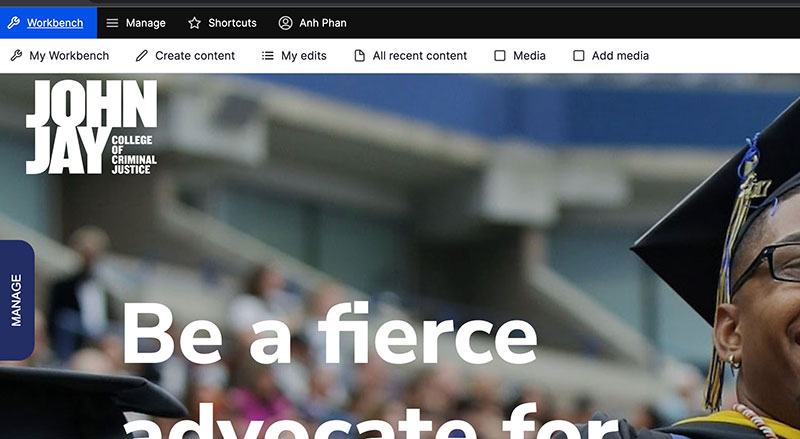
My Workbench (to see YOUR recent edits)
Create content (to create a new page)
My edits (to see the pages you created/edited)
All recent content (to see ALL recent content)
Media (to view and access the Media Library to select images and files)
To create a page, click Create content.

Log in to the site, click "Workbench" on the upper left of your screen then "My Workbench." Your content should appear below. Click on the link to the page you want to edit. If your content does not appear, click on "All recent content" and search by URL keywords. Please complete & submit our request form if you need assistance.
To edit a content page, go to "Workbench" click on "All recent content," type keywords from the URL into "Title" and click "Apply." Click on the URL you want to edit in the results.
On the page you're editing, click "Manage" in the blue tab on the left-hand side of the page, then "Edit content."
Each webpage consists of at least one content block. To edit content, scroll to the content you want to edit and click the pencil icon on the upper right of the section.
Edit your content (it's very similar to editing content in a Google or Word Doc).
When you're finished, scroll to the bottom of the content block and click "Update." Scroll to the top of the page and click "Save Layout." Your changes will be visible to users.
To create a new content page, go to "Workbench" click on "Create content" and select "Content page." Add the title of the page and click "Save."
A content page with dummy content will be generated. You can delete or edit the dummy content as needed as well as add new types of content. For the latter, see #12-14 in this user guide.
When your content page is complete and has been saved, please contact Anh Phan at aphan@jjay.cuny.edu. She will incorporate the page into the site architecture.
Hyperlinks are essential for content accessibility, enabling users to navigate content efficiently. To comply with the new standards, it’s important to create hyperlinks that are clear, descriptive and accessible to all users, including those using assistive technologies.
- Descriptive Link Text
- Ensure link text is meaningful and descriptive, indicating the purpose or destination of the link.
- Avoid using vague terms like “click here” or “read more.”
- Example: Use “Download the annual report” instead of “To download the report, click here.”
- Contextual Clarity
- The link text should make sense out of context. Users navigating via screen readers often jump from link to link.
- Example: “Learn more about our accessibility policy” provides clear context.
- Avoid Using URLs as Link Text
- Long URLs can be confusing and difficult to read, especially for screen readers.
- Instead, use a descriptive phrase that represents the link’s destination.
- Example: Use "Find more information about the Department of Political Science" instead of "Find more information about the Department of Political Science: https://www.jjay.cuny.edu/academics/academic-departments/department-political-science
Creating and editing a hyperlink on the site is similar to creating and editing one in a Google or Word doc:
- Highlight the text you want to turn into a link
- Click the link icon in the toolbar
- Add the link to the dialog box that appears
- Click the green Insert button to save the link
- Scroll up to the top and click "Save Layout" to apply the change
To edit a hyperlink
- Click on the link you'd like to edit
- Click the pencil icon in the dialogue box that appears
- Delete the current link and add the new link
- Scroll up to the top and click "Save Layout" to apply the change
To remove a hyperlink
- Click on the link you'd like to edit
- Click on the remove link icon (a link + x)
- Scroll up to the top and click "Save Layout" to apply the change
Use a landing page when you want to provide a high-level overview of department/unit content. Landing pages are typically "parent" pages with hierarchical relationships to their "child" pages.
For example, the Academics department has a landing page with associated child pages such as Undergraduate Programs, Graduate Programs and Certificates.
To create a landing page, click Create content in Your Workbench and select Create Landing Page. You'll be prompted to add the page title (ie Admissions) and SEO summary.
An SEO [search engine optimization] summary, or meta description, is a brief description [120-150 characters] of the content of a webpage that is often displayed in search engine results below a page URL and title. The description should let users know what they’ll find on the page and encourage them to click. These descriptions do not directly affect how a search engine ranks search results. However, they can convince users to click on your link, which can have a positive effect on SEO.
Click Save when you finish adding the page title and SEO summary.

A Landing Page with dummy content will appear. To edit the content, click Manage, then Edit Content.
A landing page template containing dummy content (hero image, page title, call to action block and text block) will appear. To edit the content, click the Manage tab on the left of the screen, then click Edit Content.
Pages are built using content blocks, indicated by the circled pencil on the right. To edit content, scroll to the content block you want to edit, move or delete and click on the pencil on the upper right. Select Configure (to edit), Move (to change where the content block appears on the page) or Remove block (to delete the block from the page).
To add content to the page, click Add block at the bottom of the page, then select content blocks that are the best fit for your content. Take a look at the other landing pages in your part of the site or elsewhere on the site. Your landing page should be very similar to those. Users look for patterns & consistency when they navigate a site. Variation makes it more challenging for users to find what they need. We can help you organize your landing page.
Find more information about how each Content Block can be used in our Content Blocks guide.


When you're finished, scroll to the top of the page.
Select Save Layout if you're happy with your changes and want to publish them.
Select Discard Changes if you want to revert to the original page. Your edits will not be saved.
Do not click Revert to Defaults.

Once your parent page and related child pages are saved, please complete & submit our request form so we can integrate them into the relevant section of the site. This will automatically generate the breadcrumb and left-hand navigation on the page.
Most of the pages on our site are Content [or child] Pages with a hierarchical relationship to a Landing [or parent] Page. Creating these relationships between pages establishes the overall organization of the site and automatically generates both the page breadcrumbs and left-hand navigation items.
When you save a new parent page or child page, please complete & submit our request form so we can integrate them into the site hierarchy. This will automatically generate the breadcrumbs and left-hand navigation on each page.
Breadcrumb navigation appears near the top of each page and helps users navigate the site.

When you save a new parent page or child page please complete & submit our request form so we can integrate them into the site menu under the relevant parent page. This will automatically generate the breadcrumbs and left-hand navigation.
Please note: Faculty profiles are tied to John Jay's identity management system. Only faculty members and the web team can edit or create a faculty profile.
If you had a profile on the old website, it was migrated to the new website. If you're not sure, please check by navigating to your department landing page, scrolling until the Navigation tab appears on the left side of the screen and clicking "Faculty."
If you have a profile on the new John Jay site:
- Visit the login page
- Enter your John Jay credentials [email & password]
- Click "Workbench" on upper left
- Click "All recent content"
- Enter your name in the "Title" field & click "Apply"
- Click on your name
- Click the "Manage" tab on the left then click "Edit"
- Edit your profile
Files uploaded to the site (such as CVs) must meet federal and state accessibility standards. Please send your accessible file to Anh Phan (aphan@jjay.cuny.edu), who will run an accessibility check. If the file is accessible, we'll upload it for you and send you the link.
PDFs are especially challenging to remediate and are problematic beyond their lack of accessibility. Before attempting to remediate an existing PDF, consider if the material in the PDF can be copied and pasted into a web page or a Word doc (Word docs tend to be accessible and are easier to make accessible. (Why PDFs should be avoided.)
Note on Word docs: to prevent anyone except the document owner from editing the document, change the mode in the upper right corner from "Editing" to "Viewing."Image
- If you don't have an accessible file, you can copy and paste your CV content into a page that automatically links from your faculty profile. Click "Create CV." Type "Curriculum Vitae: Your Name" into the Title field and copy and paste your CV content into the Body. When you're finished, scroll to the top and click "Save."
- When you're finished editing your profile, scroll to the bottom of the page and click "Save."
If you do not have a profile, you can create one. To create a new profile:
- Visit the login page
- Enter your John Jay credentials [email & password]
- Click "Workbench" on upper left
- Click "Create content"
- Click "Faculty Profile"
- Add content to your profile page
- Files uploaded to the site (such as CVs) must meet accessibility standards as well. Please send your PDF or Word file to Anh Phan (aphan@jjay.cuny.edu), who will run an accessibility check. If the file accessible, we'll upload it for you.
PDFs are especially challenging to remediate and are problematic beyond their lack of accessibility. Before attempting to remediate an existing PDF, consider if the material in the PDF can be copied and pasted into a web page or a Word doc (Word docs tend to be accessible and are easier to make accessible. (Why PDFs should be avoided.)
Note on Word docs: to prevent anyone except the document owner from editing the document, change the mode in the upper right corner from "Editing" to "Viewing."
- If you don't have an accessible file, you can copy and paste your CV content into a page that automatically links from your faculty profile. Click "Create CV." Type "Curriculum Vitae: Your Name" into the Title field and copy and paste your CV content into the Body. When you're finished, scroll to the top and click "Save."
- Files uploaded to the site (such as CVs) must meet accessibility standards as well. Please send your PDF or Word file to Anh Phan (aphan@jjay.cuny.edu), who will run an accessibility check. If the file accessible, we'll upload it for you.
- When you're finished, scroll to the bottom of the page and click "Save."
Please complete & submit our request form if you need assistance.
Each web page consists of content blocks, which provide different ways to present and organize content. Find more info about how to use content blocks in our Content Blocks guide.
- While there are several types of content blocks, users look for patterns & consistency when they navigate a site or scroll down a page. We recommend limiting the types of content blocks used on a page to no more than three.
- Take a look at the other pages in your part of the site or elsewhere on the site. Your pages should be very similar to those. Variation makes it more challenging for users to find what they need.
To add content to the page, click Manage, then Edit Content, then Add block at the bottom of the page. Select a content block[s] that are the best fit for your content. Add the content required, scroll to the bottom of the content block and click Update. Check your work and if it's correct, scroll to the top of the page and click Save Layout.
To move content blocks up or down the page, click the pencil on the content block you'd like to move and select Move. The content being moved is labeled (current). Drag and drop the content block to its new location.

Click Move when you're done. Check your work and if it looks good, scroll to the top of the page and click Save Layout.
Each web page consists of content blocks, which provide different ways to present and organize content. Find more info about how to use content blocks in our content blocks guide.
- While there are several types of content blocks, users look for patterns & consistency when they navigate a site or scroll down a page. We recommend limiting the types of content blocks used on a page to no more than three.
- Take a look at the other pages in your part of the site or elsewhere on the site. Your pages should be very similar to those. Variation makes it more challenging for users to find what they need.
Please complete and submit our request form. [Select "website support" then "add an event to the website calendar."]
The Communications & Marketing team is working to ensure that this website is more accessible for users and complies with New York State and federal digital accessibility standards.
The new standards apply to webpages, images, PDF, Word, Excel, Google Slides and video files uploaded to the site and linked to from other sites or platforms (like Dropbox or Google Drive).
Instead of uploading your files directly to the site and before linking to a file on another site, please email the file to Anh Phan at aphan@jjay.cuny.edu.
- If it’s an image, we will adjust it as needed, upload it to the site and let you know when it’s available.
- If it’s a PDF, Word, Excel, PowerPoint, Google Slide or video file, please include the documentation indicating that it’s compliant. This is typically generated when you verify whether a file is accessible.
- If your file is not compliant, you can share the information on a web page or web form instead or make it accessible using the info in this User Guide. If you're not sure, check in with Aaron Fineman at afineman@jjay.cuny.edu.
- For info on faculty CV files, please refer to #17 in this User Guide
Images
We typically use candid photos, not graphics or posed photos, which enhances the authenticity and verisimilitude of our content. Please use candid photos whenever possible.
It's imperative that we do not use images that are copyright-protected. Many images found online are copyright-protected. We have an account with Shutterstock that allows us to use their images. Search the site for an image and send the image ID number to us through our request form. We'll download it for you. You can also search Unsplash for free royalty-free images.
The Communications & Marketing team is working to ensure that this website is more accessible for users and complies with New York State and federal digital accessibility standards.
The new standards apply to webpages, images, PDF, Word, Excel, Google Slides and video files uploaded to the site and linked to from other sites or platforms (like Dropbox or Google Drive).
Instead of uploading your files directly to the site and before linking to a file on another site, please email the file to Anh Phan at aphan@jjay.cuny.edu.
- If it’s an image, we will adjust it as needed, upload it to the site and let you know when it’s available.
- If it’s a PDF, Word, Excel, PowerPoint, Google Slide or video file, please include the documentation indicating that it’s compliant. This is typically generated when you verify whether a file is accessible.
- If your file is not compliant, you can share the information on a web page or web form instead or make it accessible using the info in this User Guide. If you're not sure, check in with Aaron Fineman at afineman@jjay.cuny.edu.
- For info on faculty CV files, please refer to #17 in this User Guide.
A URL is automatically generated when you create a page.
If the automatically generated URL is too long, not distinctive enough, etc., we can change it for you. Please email the revised text to Anh Phan at aphan@jjay.cuny.edu or Aaron Fineman at afineman@jjay.cuny.edu.
Left-hand navigation is automatically applied to parent pages [see #14 - Creating Parent/Child Page Hierarchies]
If you prefer not to include a left-hand navigation on your page:
- Click the Manage tab.
Click Edit Metadata.
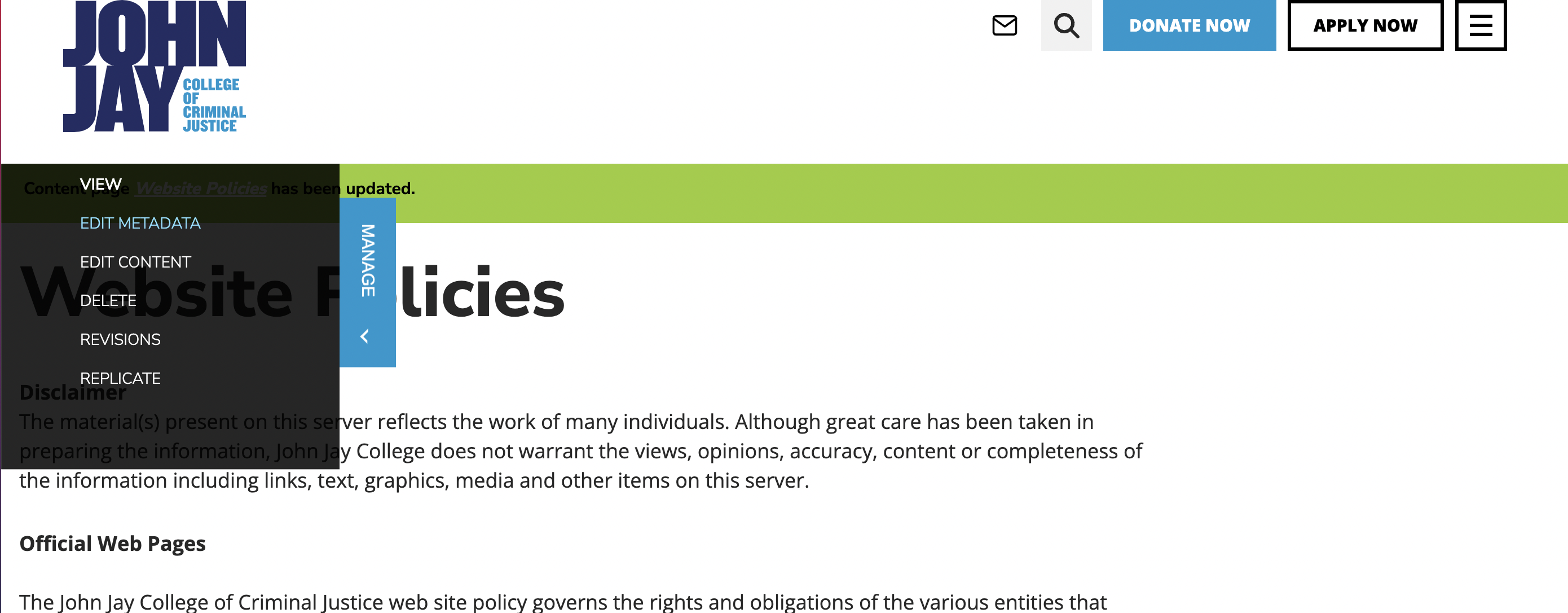
- Click on the Hide the Left-Hand Navigation toggle button under the Title field.
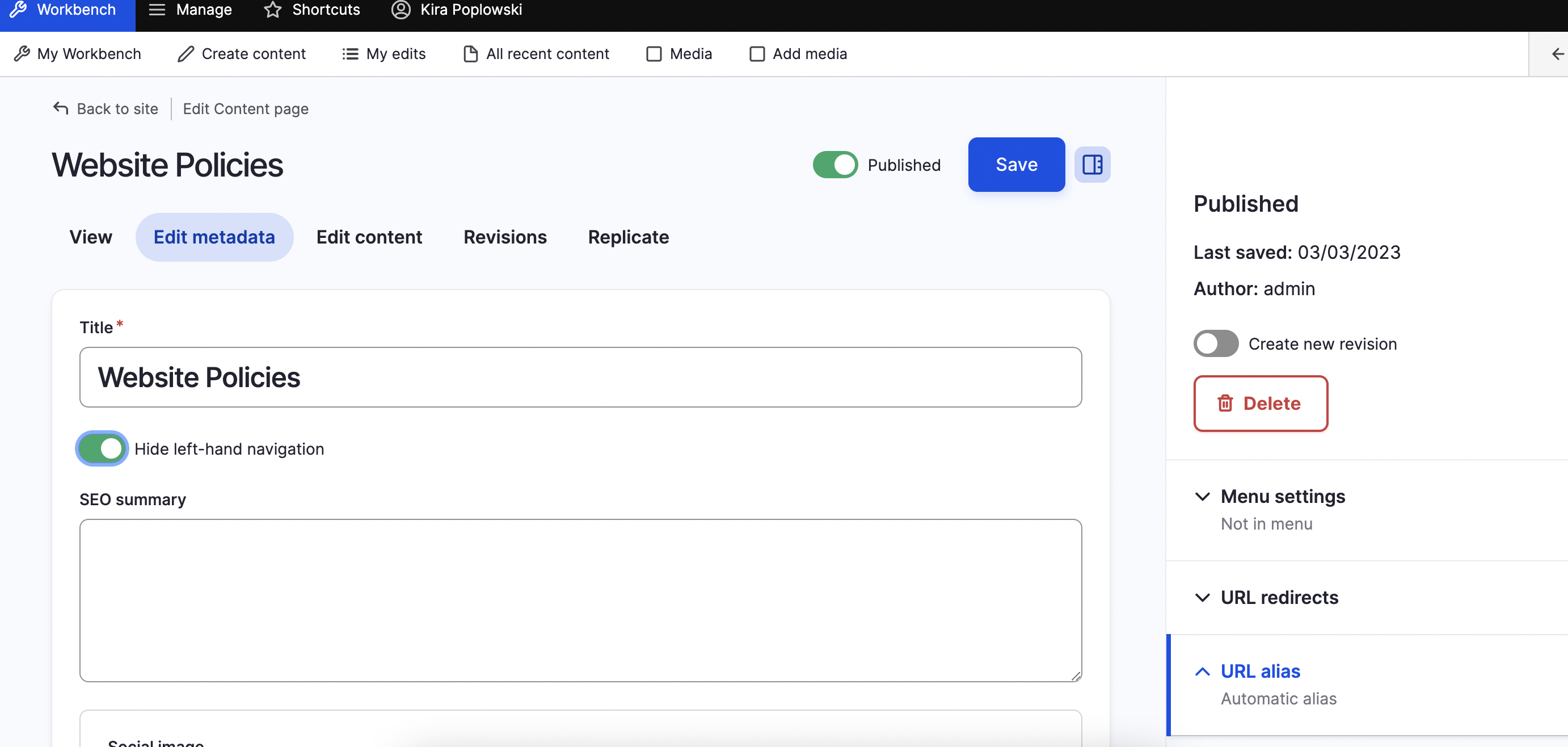
- Move the toggle to the left.
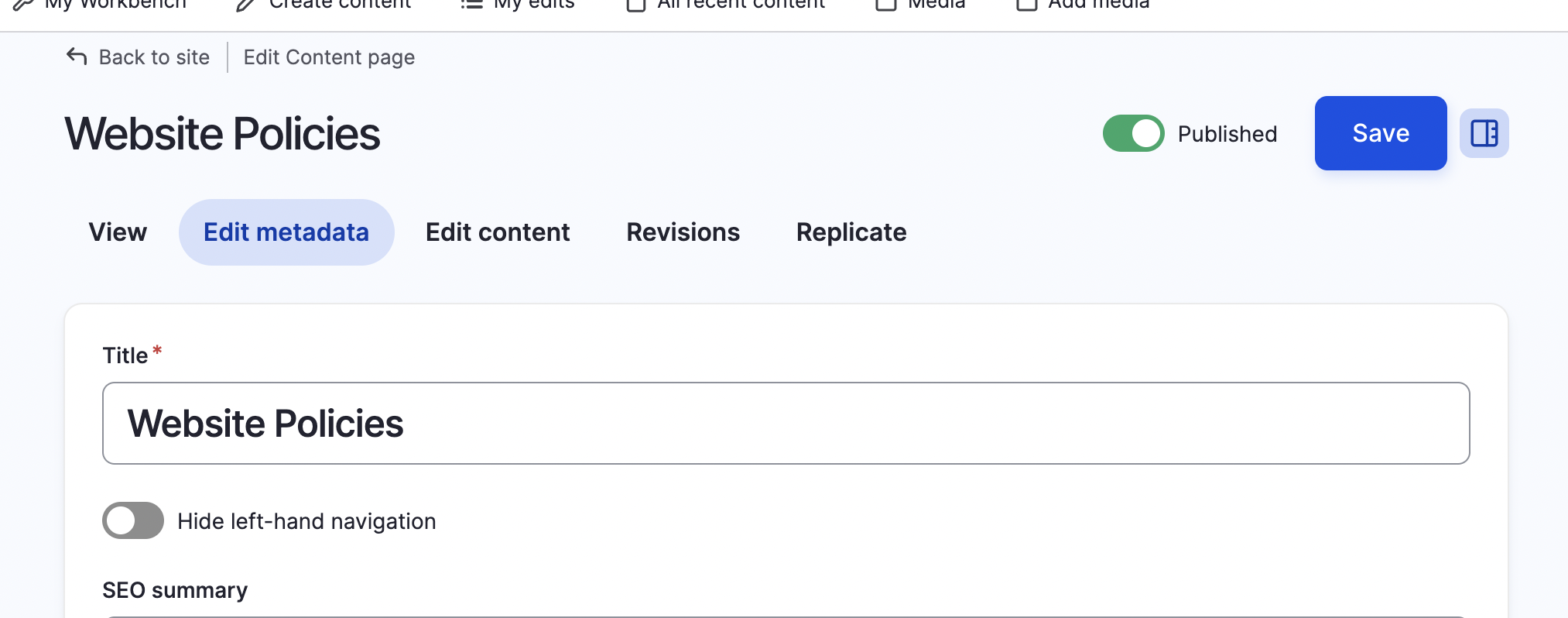
- Click Save on the upper right corner of the page.
Links that appear in the left-hand navigation on a parent page are automatically generated when a hierarchical relationship is created between a parent page and a child page.
If you'd like to delete, add or edit left-hand navigation links, please complete & submit our request form.
An SEO [search engine optimization] summary, or meta description, is a brief description [120-150 characters] of the content of a webpage that is often displayed in search engine results. The description should let users know what they’ll find on the page and encourage them to click. Search engines typically display a page description below its URL & title.
These descriptions do not directly affect how a search engine ranks search results. However, they can convince users to click on your link, which can have a positive effect on SEO.
To add an SEO summary to a page, click Edit Metadata in the Manage tab.

Scroll to the SEO Summary field and add a summary of page contents in about 155 characters.

Click Save at the top of the page.
What's a landing page and why is it important?
Your department/degree program landing page is the "front door" to your section of the website and is likely to have much more traffic than your other pages. Your main audiences are prospective students and current students, so it's an opportunity to "advertise" as well as share information.
Both prospective students and current students will look for information that's relevant to them: what's distinctive about your program, what they might learn/do if it's their major/minor or grad degree and what careers or more advanced degrees are associated with it.
Current students will also visit your landing page to complete a task, such as finding advisement resources, course requirements, a faculty member's email, etc. Links to these items can appear on your landing page, but keep in mind that the resources mentioned in the paragraph above are of interest to both prospective students and current students and should be more prominent.
How are department/degree program landing pages organized?
Navigating a site is easier for users if page layouts are consistent across a site or section. The landing page format and content was reviewed by President Mason and reviewed and approved by Provost Pease. It applies to all departments/degree programs.
What do I need to do?
Here's what's needed for your landing page:
- Hero image: this is the large image at the top of the page. Use an image relevant to your program that does not compete with the text [[which is formatted "Department of [Name of Discipline]" or "[Name of Degree] in [Name of Discipline]].
- Icons/text: this appears below the hero image. You can choose the icons and the text that appears below the icons. At a glance, this section shares information that research shows is exceptionally important to prospective and current students.
The text should be very brief [no more than 20 characters for the bolded text and no more than 60 for the unbolded text] yet impactful. Longer text will disrupt the layout, especially on mobile. We can work with you on this. You also have the option of adding a "Learn More" link so users can click for additional information.
- Highlights: this appears below the icons/text. This section showcases what's compelling about your program for both current and prospective students and aligns with an important strategic goal: student recruitment and retention. The only fixed item in this section is the link to Admissions on the far right. For the others, you can choose the links, images and very brief subtitles (no more than 20 characters) and descriptions (no more than 75 characters). This might include:
- link to success stories about student/alum majors
- link to internships related to the major/minor
- link to info on career paths
- link to scholarships & fellowships related to the major/minor
- link to new or interesting courses offered by the department
- link to news and/or events
- Resources: this appears below the highlights section. This is the spot for practical, task-oriented links to content largely for current students. This might include:
- link to major/minor requirements
- link to advisement resources
- link to FAQ
- link to faculty profiles/contact info
- link to staff contact info
- Optional section: this appears below the resource section. It allows you to link to more content if necessary and delete if not. You can choose the image, subtitles and links. If the format doesn't work well with your optional content, please contact Kira Poplowski at kpoplowski@jjay.cuny.edu to discuss options.
- Contact us: this appears below the optional section. Users expect to scroll to the bottom of a page to find it, so it should remain there. Keep the content brief: one department email address, one department phone number and one department location.
We can collaborate with you on strategy to organization to layout to step-by-step implementation. We're here to help. Please email
Anh Phan, Web Assistant, aphan@jjay.cuny.edu
Aaron Fineman, Director of Web Services, afineman@jjay.cuny.edu
Kira Poplowski, Chief Communications Officer, kpoplowski@jjay.cuny.edu
To delete a page, click on the "Manage" tab on the left-hand side of the screen. Click "Delete" on the menu then the red "Delete" button on the page that appears (see below). Then scroll to the top of the page and click "Save layout."

An accessibility checker installed on the site automatically flags inaccessible content or potentially inaccessible content that should be checked manually.
- A red exclamation point indicates an issue to resolve. Click on it. A pop-up window will identify the issue and provide options for addressing it.
- A yellow question mark indicates an issue to check manually. Click on it. A pop-up window will identify the possible issue and provide options for addressing it.
If your manual check indicates that it's not an issue, click "Mark as OK."
If your manual check indicates it's an issue you can fix, make the fix.
- Additionally, a red box on the bottom right corner of the page lists all the issues identified on the page. Click on it to open the list and click on each issue to see options for resolving it.
The checker will flag items that content editors cannot address. It will also flag items that it identifies as inaccessible that are actually accessible.
If you're unsure, please check in with Aaron Fineman at afineman@jjay.cuny.edu
Here's some info on creating accessible content:
- Hyperlinks - see guidelines at #13 in this User Guide
- Images - see guidelines at #22 in this User Guide
- Word - see info on accessible Word files
- Excel - see info on accessible Excel files
- PowerPoint - see info on accessible PowerPoint files
- Videos - see info on accessible videos
- PDFs - see info on accessible PDFs
- Google Sheets, Docs & Slides - Install Grackle Docs, click Extensions, click Grackle Docs & follow the prompts
- CloudDrives - all materials linked from Google Drive or Dropbox must also be accessible
In some cases, you may be able to copy and paste the content in a document into a web page instead of making it accessible retroactively. You can find info on creating/editing a webpage at #11 & #12 in this User Guide.
There is no "one-click" solution to making a document accessible. It is almost always easier to create an accessible document than make an existing document accessible (and sometimes it's not possible).
PDFs are especially challenging to remediate and are problematic beyond their lack of accessibility. Before attempting to remediate an existing PDF, ask if the material in the PDF can be copied and pasted into a web page or a Word doc. (Why PDFs should be avoided.)
Save your work by scrolling to the top of the page and clicking “Save Layout.” If a red exclamation alert still appears, it was not addressed successfully. Troubleshoot using the info at #4 in this User Guide. If you need assistance, please email Aaron Fineman at afineman@jjay.cuny.edu.
Please send any questions to Aaron Fineman at afineman@jjay.cuny.edu.
We can collaborate with you on strategy to organization to layout to accessibility to step-by-step implementation. We're here to help. Please email:
Anh Phan, Web Assistant, aphan@jjay.cuny.edu
Aaron Fineman, Director of Web Services, afineman@jjay.cuny.edu
Kira Poplowski, Chief Communications Officer, kpoplowski@jjay.cuny.edu
Contact us
-
Call
212.237.8536
-
Visit
601 Haaren Hall