

Add Zoom links to Brightspace
John Jay College has a campus Zoom license which can be used for Zoom meetings and recordings. At this time, this version of Zoom is not integrated within Brightspace, links to live sessions or recordings will need to be added manually to courses.
Access John Jay Zoom Account
- Go to John Jay Zoom Login > Select the Sign in button.

- On the sign in page, enter your John Jay Network ID (this is the same username and password for your John Jay email) > Select Next.

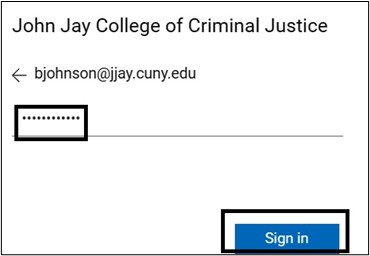
- Enter your John Jay Network ID password > Select Sign in
Copy Zoom Link
1. Within your Zoom account, select Meetings on the left side menu.
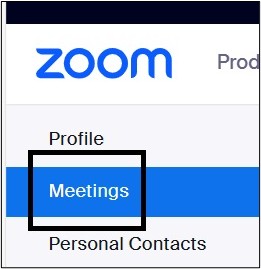
2. On the Meetings page, under Upcoming or Previous, select the Name of the Meeting.

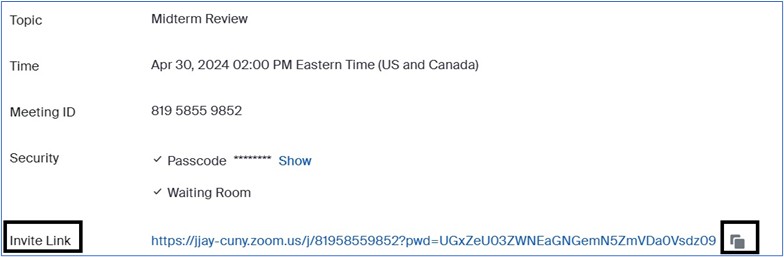
3. On the Meeting page, under Invite Link, select the Copy to Clipboard icon in the lower right to copy the Zoom session link
Copy Zoom Recording Link
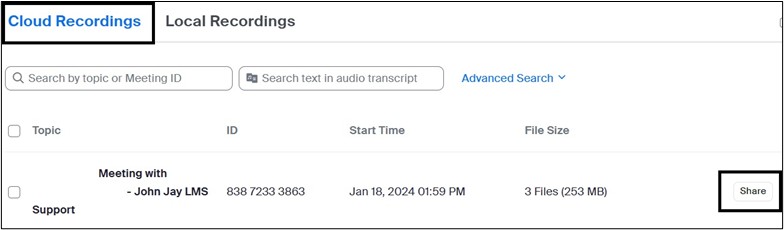
1. Within your Zoom account, select the Recordings tab on the left side menu to access previously record lectures.
Note: You must save any recorded sessions as Cloud Recordings. You cannot link to locally stored recordings. For further information on how to use Zoom please contact the John Jay Help Desk.

2. Select the Share button to the right of the recorded session you want to post in Brightspace
3. Select the Copy button to copy the link of your recording Settings
Note: A password is set by default for all sessions. For further settings, such as removing or changing the password to the session, select Share Settings

Add Zoom Link to Brightspace Course
1. Access Brightspace to add your recording link to a course by going to www.cuny.edu > Select Login > Select Brightspace link > Select Brightspace

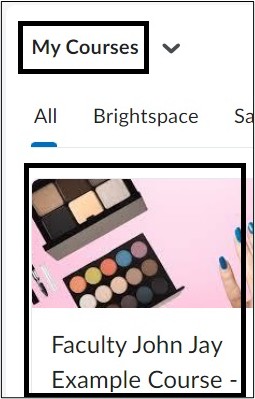
2. On the My Course widget, select the course in which you want to add your link.
3. Within the course, select Content from the Nav bar

4.Select the module in which you want to add the session link > Select Upload/Create button > Select Create Link
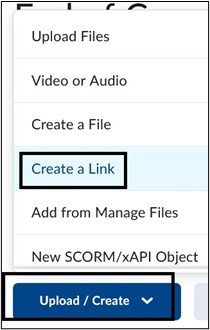
5. Enter the Name of session link in the Title field. Paste the copied link from Zoom in the URL field. Select Create to add the link to the module

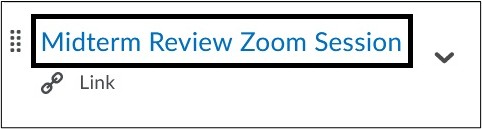
6. The Zoom link will appear on the module page. Learners can select the link and it will launch the Zoom recording.
For Zoom account assistance please contact DoIT Helpdesk at: helpdesk@jjay.cuny.edu
For more information and assistance, please email Office of Digital Learning - Learning Management System Support at LMS.faculty@jjay.cuny.edu