

Create New Material in the New Content Experience
To create and add new learning material
You can add the following learning materials to your course in the New Content Experience. The top of the Create New menu shows breadcrumbs to help you see where you are adding material. This also allows you to easily navigate up or down the tree to add material at different levels.
- On the Course Navbar, select Content.
From the Table of Contents, select the Unit, Lesson, or Folder you are adding material to and select Create New.
Image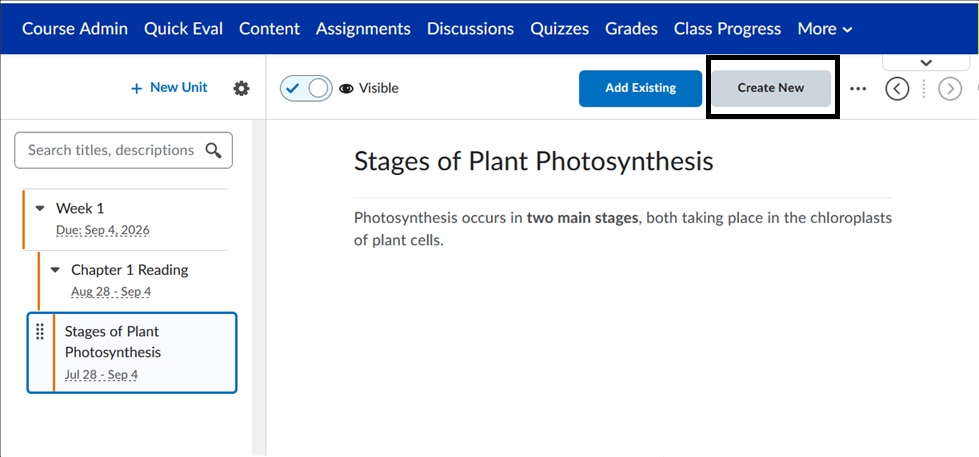
- From the What would you like to create? page, choose one of the following options:
- Create a new lesson
- Create a new page: Enter a title and use the HTML editor to create your new content item. Use the visibility toggle to make the HTML document visible or hidden from learners on creation and click Save.
- Create a new WebLink
- Assignment
- Discussion: Choose a Forum and Enter a Name and Description, and then select Create and Insert.
- Quiz: Enter a Name and Description, and then select Create and Insert.
Note: You will need to access the Quiz in the Quizzes tool to add questions and edit the settings. - Checklist: Enter a Name and Description, and then select Create and Insert.
- Surveys: Enter a Name and Description, and then select Create and Insert.
Image

View Create new material for more information.
For more information and assistance, please email Office of Digital Learning - Learning Management System Support at LMS.faculty@jjay.cuny.edu.