

Access and Grade Assignments
In Brightspace, assignment submissions can be accessed in three ways:
- On the Assignments page
- On the Quick Eval page
- On the Enter Grades page
Note: These instructions are for Brightspace assignments, Turnitin LTI assignments or other third-party tools would not display on the Assignments page or Quick Eval.
Accessing submissions through the Assignments page
- In your course, select Assignments on the Course navbar.

- On the Assignments page, click on the Assignment Name in blue.
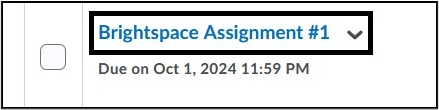
Note: You can also access the Submissions page by selecting the drop-down button to the right of the assignment name and select View Submissions.
- On the Submissions page, you can view student submissions by User or by Submission.
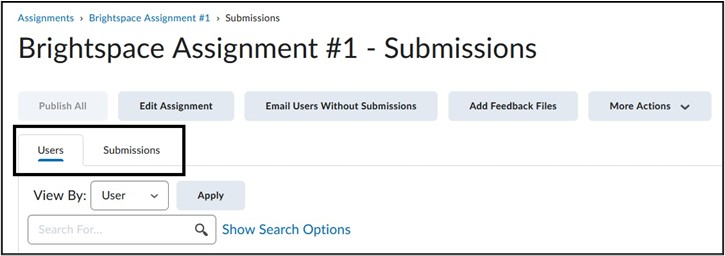
- If the student submitted an attachment, click on the Attachment Name to be brought to the grading page. You can also select Go to Evaluation if there is not a submission listed.

Accessing submissions through Quick Eval
- Select Quick Eval on the Course navbar.

- Select View by: Submissions. Select student’s name in blue.
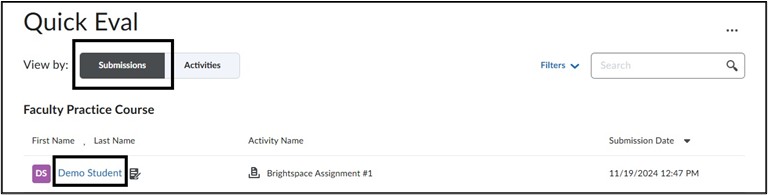
- Select the student’s file attachment to view submission.
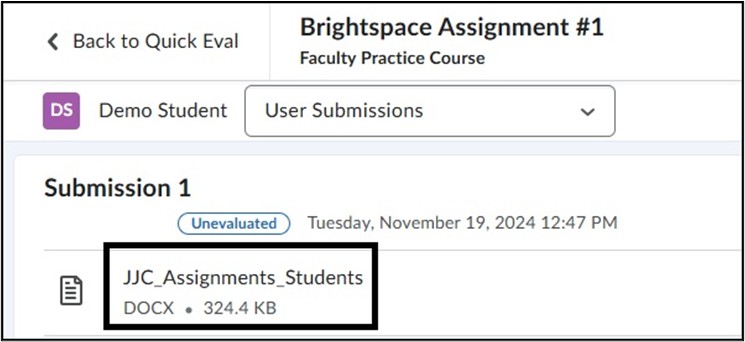
Note: Depending on the Submission Type chosen, this view could look different. View Customizable Submission Types in Brightspace.
Accessing submissions through Grades
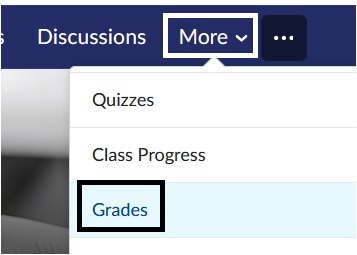
- Select More on the Course navbar. Select Grades from the drop-down menu.
- On the Enter Grades page, scroll to the Grade Item for the assignment. Select the Unread File Submission icon.
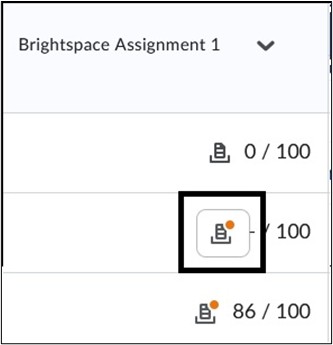
View the Glossary of Icons in Brightspace
- Select the student’s file submission to view attachment.
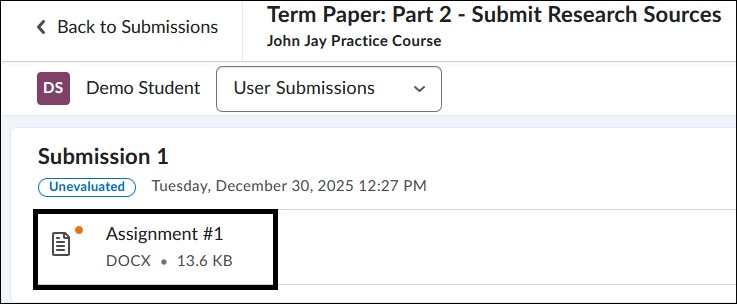
Grading Submissions
- On the Submission page the file will display, and annotation tools can be used to mark the paper.
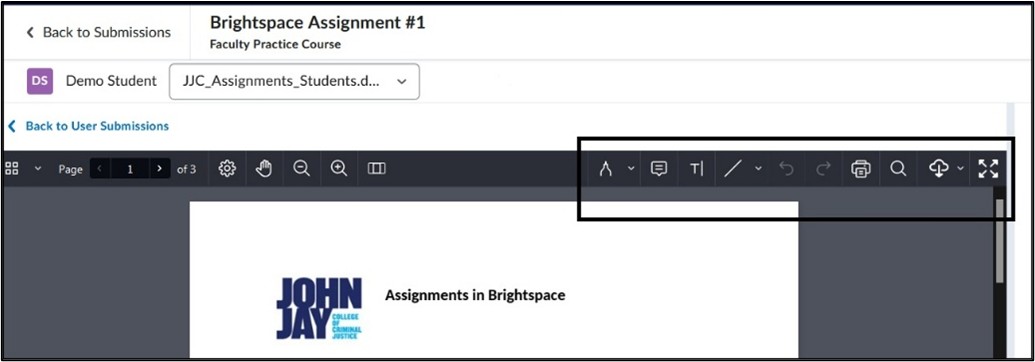
View Annotations in Brightspace
- The score for the assessment can be entered in the Overall Grade box. The Overall Feedback text editor allows for additional comments and has the same capabilities as the general Brightspace text editor.
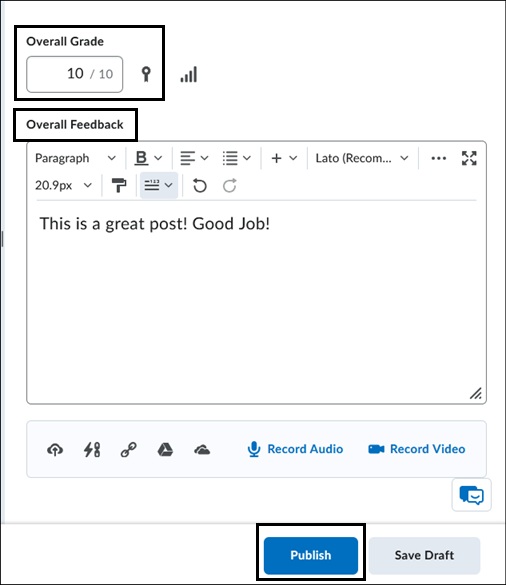
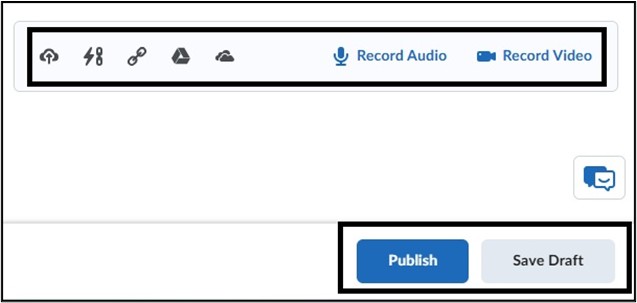
- Instructors can also upload additional documents, add links to existing activities, attach files from Google Drive and OneDrive and insert Audio or Video Feedback. Instructors can move through submissions by selecting the back-and-forth arrows in the top right corner. Once a score and feedback are entered, select Draft to save work but not release to students. Select Publish if the assignment grade is ready to release to the student.
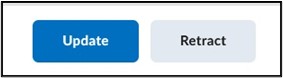
- Once the student’s submission is Published the button will change to Update. Published means that the student will see their score and be able to access their feedback for the. assignment through the Assignment page and on the Grades page. If any further changes or feedback are added to the assignment, make sure to select Update to save those changes. Retract can be selected if you want the submission reverted to Draft mode. Once an assignment is retracted it will have to be published again for the student to see the grade and feedback.
Select Back to Submissions in the upper left to go back to the main Submission page for the assignment. Select the User arrows in the upper right to move through submissions.
Image
For more information and assistance, please email Office of Digital Learning - Learning Management System Support at LMS.faculty@jjay.cuny.edu