

Add Third-Party Tools (LTIs) in Brightspace
View instructions as PDF: Add Third-Party Tools in Brightspace
Access Third-Party Tools
1. To add a link to a third-party tool within your course, select Content on the Course navbar > select a Module > select Existing Activities > Select the Tool Name from the drop-down menu.

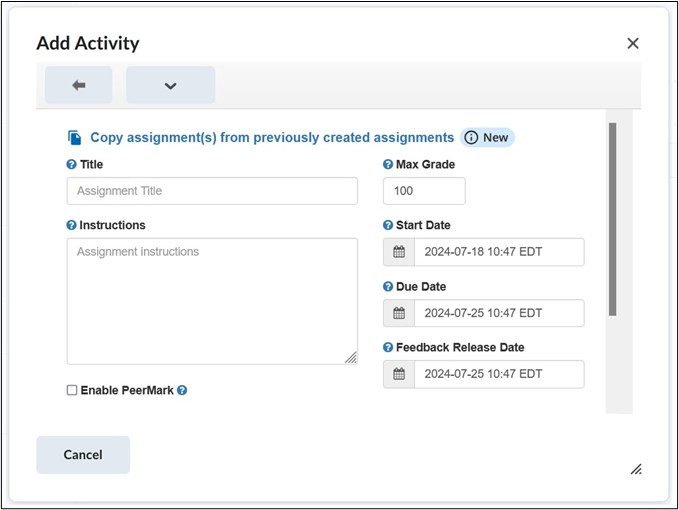
2. Once the LTI link is chosen, it will launch in an Add Activity box to set up that specific tool. In this example below, it shows the Turnitin LTI, which has the same setup as the previous Blackboard version.
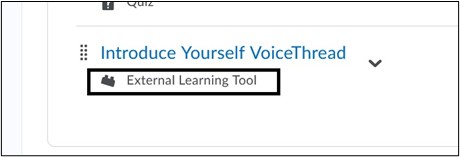
3. Once your LTI link is setup within a module, click on the link itself to access submissions and grading. For most LTIs, once the link is created in a module, a column will be created in Grades where the scores will sync once the students submit their work. The icon of External Learning Tool will display within a module to identify what links are third-party tools.
Important Notes for using Third-Party Tools (LTIs) within Brightspace:
1. These tools need to share information with external websites in order to function. However, many web browsers restrict or disable third-party cookies. To use tools such as PlayPosit or VoiceThread, you must enable third-party cookies in your web browser.
Enable third-party cookies:
2. It is recommended for faculty and students to access LTI links on a computer using a web browser rather than through the Brightspace Pulse app or a mobile device.
3. In Brightspace, LTIs do not display the vendor’s icon as they did in Blackboard, so it is recommended to add the name of the tool within the title of the assignment so that students are aware of the type of assignment, and it is also easier to identify for troubleshooting purposes by LMS Support.
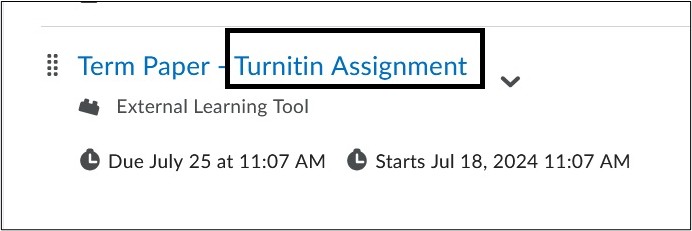
4. LTI assignments do NOT appear under Quick Eval or the Assignments link on the Course navbar. Access to the LTI and grading must be done through the LTI by clicking on the link within the module.
5. At this time, if using PlayPosit, the grade columns will only appear in Grades once a student clicks on the link to launch LTI.
For more information on LTIs within Brightspace access the vendor website below:
Note: Some displays or steps can be different on a vendor’s website. Please follow the steps above to add LTI link.
Turnitin – John Jay is currently using the Turnitin LTI 1.3 version
For more information and assistance, please email Department of Digital Learning - Learning Management System Support at LMS.faculty@jjay.cuny.edu