

Download Blackboard Collaborate Recordings
Download Blackboard Collaborate Recordings
View instructions as PDF: Download Blackboard Collaborate Recordings
CUNY will retire Blackboard on December 18th, 2025. While course archives will be maintained as required by CUNY policy and applicable law, Blackboard Collaborate recordings will not be included in these course archives. We encourage faculty to download any Collaborate recordings they wish to retain.
Please note: Blackboard Collaborate recordings contain student data and must be saved on CUNY storage platforms such as CUNY Microsoft Office 365 to comply with data, privacy, and security restrictions. For further assistance with CUNY Office 365 accounts please contact the DOIT Helpdesk at: helpdesk@jjay.cuny.edu.
Access Blackboard
- Go to https://www.cuny.edu/ and select Login in the upper right. Select Brightspace/Blackboard from the drop-down menu. On the right-hand side of the Brightspace/Blackboard page select Log into Blackboard.
- On the CUNY Login page enter your CUNY Login credentials. CUNYLogin usernames are firstname.lastname##@login.cuny.edu
Download Collaborate Recordings
- Within Blackboard, select the Courses icon on the left side menu.
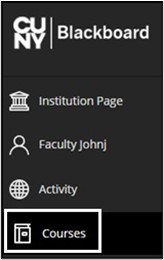
Select the Course from which you want to download Collaborate recordings. Use the Search your courses or Terms tools to filter for a specific semester. Select the Course Name to access the course.
Image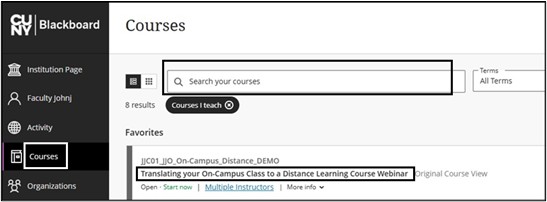
On the Course menu, select Blackboard Collaborate. If Blackboard Collaborate is not listed on the Course menu, select Course Tools. Select Class Collaborate Ultra link.
Image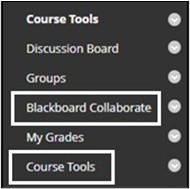
On the Class Collaborate Ultra page, select the three-dash menu in the upper left corner.
Image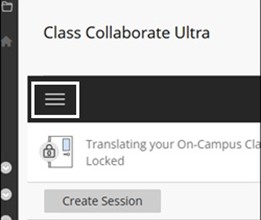
Select the Recordings tab.
Image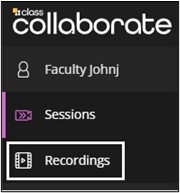
In the upper right corner, select Recordings in a Range from the drop-down filter menu.
Image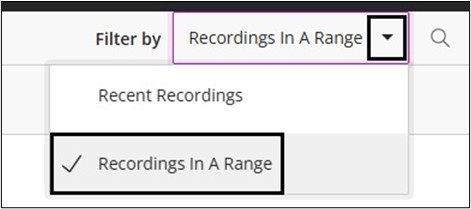
Enter a date range for the recordings. Any recordings within that date range will appear below.
Image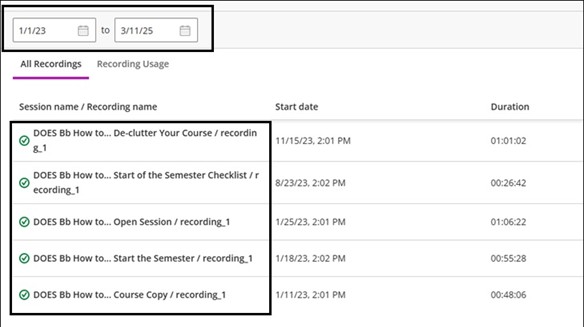
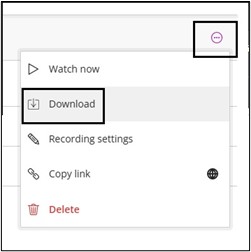
To download a Collaborate session recording, select the Recording Options (circle with three dots) on the far right-hand side. Select Download from the drop-down menu. The recording will automatically begin downloading within the browser and be saved in your device’s download folder. It is recommended to move recordings to a CUNY Storage platform such as CUNY Microsoft Office 365. The recording will be downloaded in a .mp4 file format.
Note: These steps need to be followed for each session recording.
Image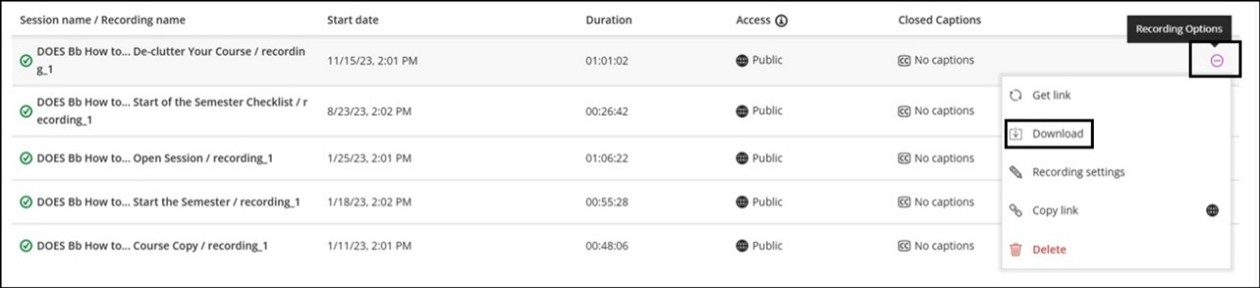
View Download Blackboard Collaborate Recording Video
For more information and assistance, please email Office of Digital Learning - Learning Management System Support at LMS.faculty@jjay.cuny.edu