

Export Course from Blackboard and Import to Brightspace
The Export course feature creates a ZIP file of course content that you can import into Brightspace or download offline for later use.
Export Settings in Blackboard
- In Blackboard, access the course you would like to export. In the course, navigate to the Course Management panel in the lower left > Select Control Panel > Packages and Utilities > Export/Archive Course.
- On the Export/Archive Course page, select Export Package.

- Under File Attachments, keep all default selections. No changes need to be made.

- In the Select Course Materials section, choose Select All to export all course materials.
Note: If you have used Starter Posts in Blackboard for Discussions, those Starter posts will NOT migrate over to Brightspace. Starter Posts refer to an instructor creating their own thread WITHIN a forum to start the conversation. Most instructors use the Description box to post questions. Questions posted in the Description box WILL import over into Brightspace.
- Select Submit to create export file.
Download Export File Offline
Once the Export file has been created it will be listed under File Name.
- Select the blue file name to download the zip file.

Import into Brightspace
- Go to CUNY Login page. Select Brightspace/Blackboard. On the next page, select Log into Brightspace. Enter your CUNYLogin username and password.
- Under the My Courses widget, select the course that you want to import the file into.

- In the course, select Course Admin on the Nav Bar in the upper left.

- On the Course Admin page, under Category > Site Resources > select Import/Export and Copy Components.
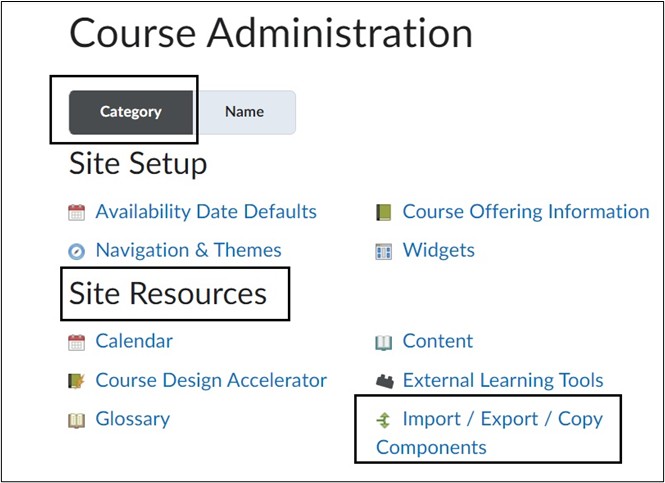
5. On the Import/Export/Copy Components page, scroll to the bottom of the page and select Import Components > Select Start to begin importing file.

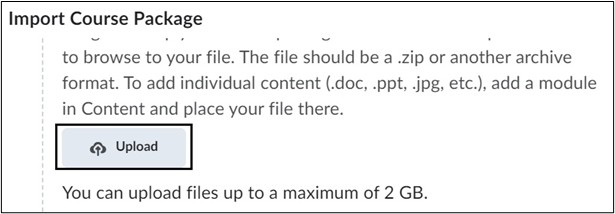
- On the Import Course Package pop up box, select the Upload button to select the previously exported file. Once the file is listed, select Import All Components button to begin import.
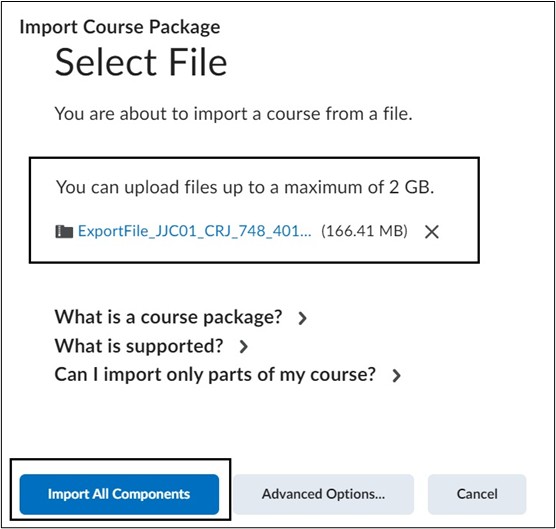
Note: Depending on the size of the file, it could take several minutes to import materials.
- Once the import is finished, you will see a “Your course package was successfully imported!” message. Select View Content to be brought into your course and review your materials. It is important to review imported materials as not all files or tools may transfer.

View Export Course from Blackboard and Import into Brightspace Video
For more information and assistance, please email the Office of Digital Learning - Learning Management System Support at LMS.faculty@jjay.cuny.edu