

Grade Display Settings - Ungraded Items
Treat ungraded items as 0 vs. Drop ungraded items
The default setting within Brightspace Grades for ungraded items is currently set to Treat ungraded items as 0. As a result, any assessment to which students have not made a submission will show as zero out of points possible and a letter grade of F. Once students submit their assessment and are graded, the items are updated with the score and letter grade the student receives. The Grades page will also display any weighted percentages if applied. The Treat ungraded items as 0 option allows any ungraded items to automatically have a zero grade in grade calculations without any manual change from the instructor.
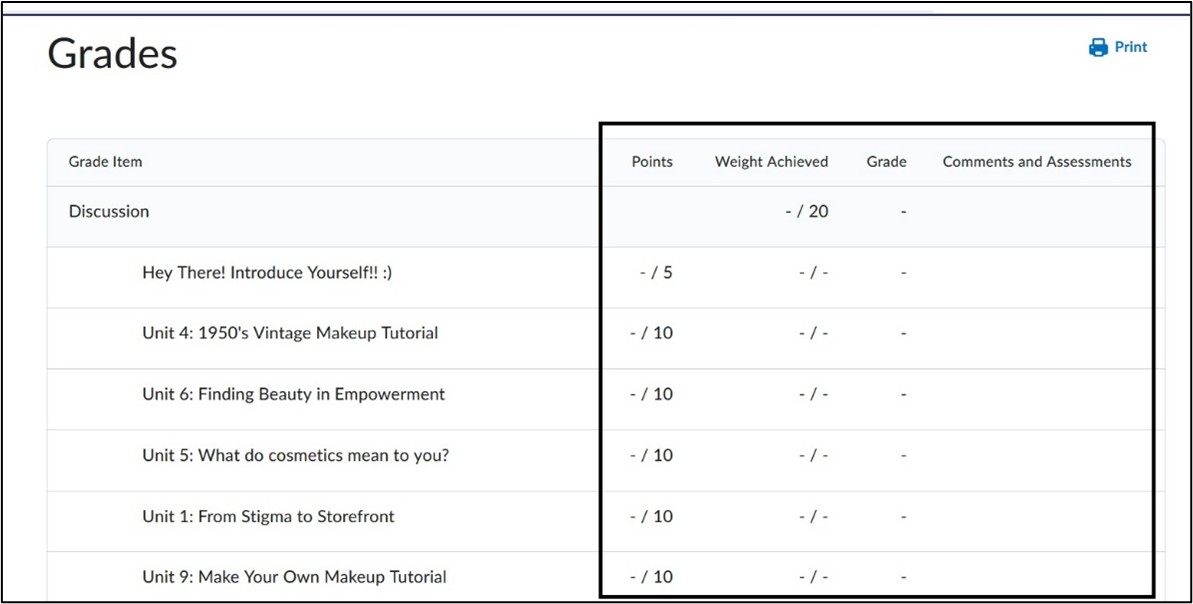
When Drop ungraded items is selected, students will see a dash in place of zero and no letter grade. Once the student submits their assessment and are graded, the score will replace the dash and the associated letter grade will appear. The Drop ungraded items option will require instructors to manually enter zeros for any assessments that the student did not submit in order to accurately calculate grades.
Students see the Grades area as follows when Treat ungraded items as 0 is selected:

Students see the Grades area as follows when Drop ungraded items is selected:
To change the Grade Calculation option from Treat ungraded items as 0 to Drop ungraded items, please do the following:
- In your course, select Grades from the top Course Navbar. If you do not see Grades listed, select More and access it from the drop-down menu.

- On the Grades page, select the Settings gear icon in the upper right corner of the page.

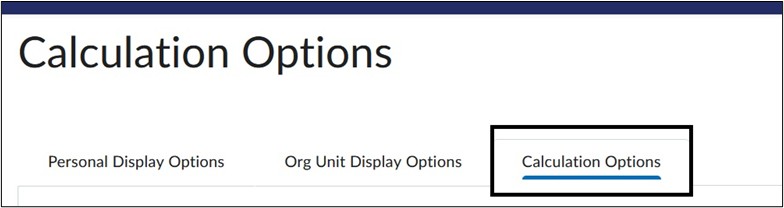
- Select the Calculation Options tab.
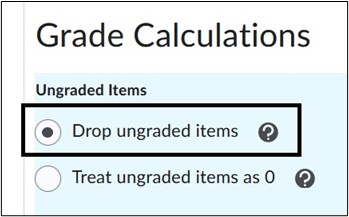
- Scroll down the page to Grade Calculations, select the Drop ungraded items selection. Select Save to retain changes.
View Set up your Grade Book for more information about Grades in Brightspace.
For more information and assistance, please email Office of Digital Learning - Learning Management System Support at LMS.faculty@jjay.cuny.edu