

Verify Grade Schema in Brightspace Course
John Jay courses are created in Brightspace with the John Jay Undergraduate Grade Schema set as the default for the calculation of final semester grades. However, a different schema must be used for graduate level courses. We recommend all instructors verify the schema set for their courses and changing the schema if needed.
Access Schemes
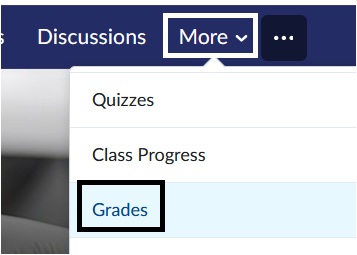
- In the course, select More on the Course navbar. Select Grades on the drop-down menu.
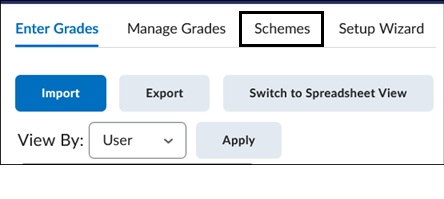
- On the Grades page, select the Schemes link.
- On the Schemes List page, multiple CUNY college schemes will appear. Scroll down the page to the John Jay schemes.

To view the percentages and assigned Letter grades, select the Grade schema name in blue. Please note that John Jay Grade schemas are the official schemas used by the college for final grades and cannot be edited.
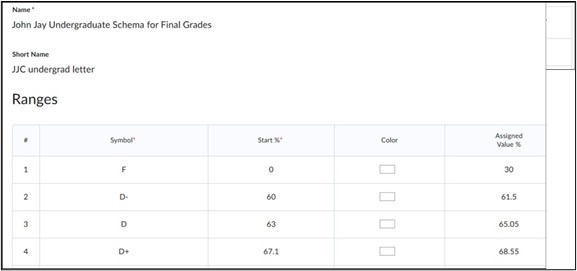
- By default, the John Jay Undergraduate Schema for Final Grades is selected by displaying the checkmark in the left side column. To change the Grade Schema to the Graduate Schema if needed, select the checkmark in the right-hand column directly across from the Graduate Schema title.

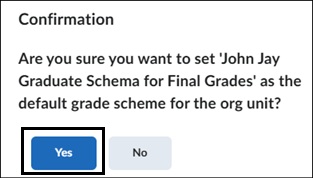
- A confirmation box will appear. Select Yes to change the Grade Schema. This change will be applied to the grade items within your Gradebook in the course.
Important Note:
If you have manually created and assigned a schema to a grade item in a course and then later change to the default schema on the Schemes page, the change will not automatically be updated in the course. You must manually update the grade schema in the course.
To verify what schema is applied to all grade items, do the following:
- Go to Grades. Select Manage Grades.

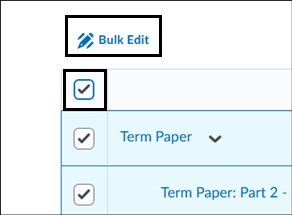
- On the Manage Grades page, check the Select All box to highlight all Grade items. Select Bulk Edit.
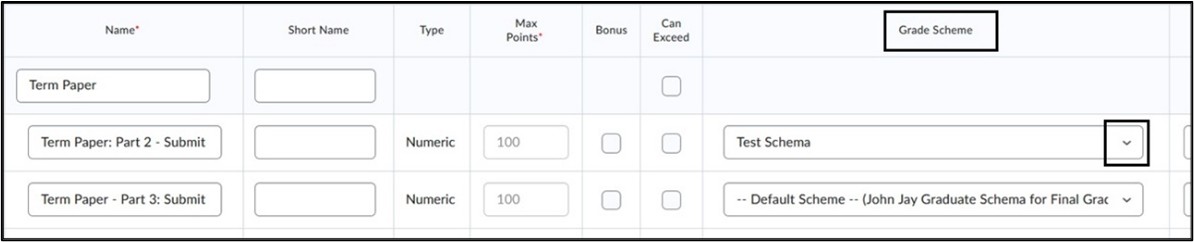
- On the Bulk Edit page, under the Grade Scheme column, view and change the schema for that specific grade item by selecting the drop-down arrow.
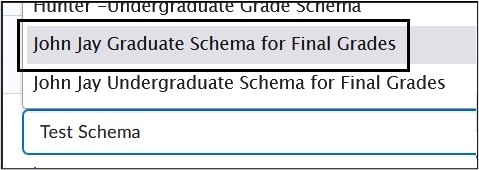
Select the new schema from the drop-down menu and select Save to retain changes.
For more information and assistance, please email Office of Digitial Learning - Learning Management System Support at LMS.faculty@jjay.cuny.edu