

Copy Course Components in Brightspace
Brightspace allows instructors to copy from one course to another. To begin your course copy, select the course that you want to copy materials into. For example, if you are teaching a new Fall 2026 semester course, you will start in that current course.
Copy Course
- Select the course from the My Courses widget.
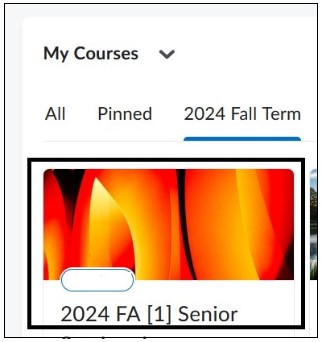
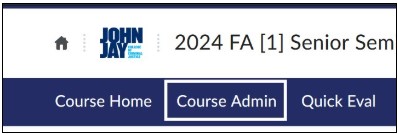
- Once within the course, select Course Admin on the blue Course Nav bar
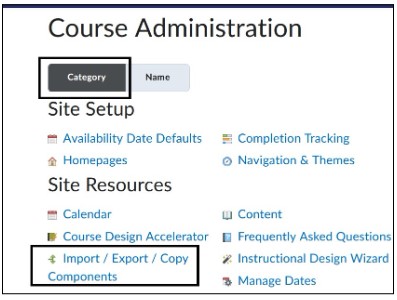
- On the Course Administration page, under Category, select Import/Export/Copy Components
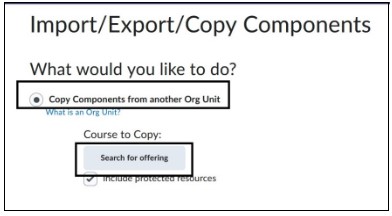
- On the next page, under Copy Components from another Org Unit, select Search for Offering
- A pop-up box will appear; enter Course Name and select Search

- Once the course appears, select the radio button to the left of the name and select Add Selected
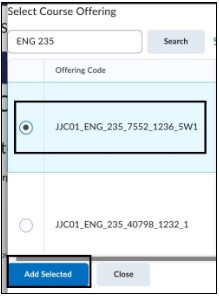
Note: Make sure you are selecting the correct Semester and Course Section
- Select Copy All Components and the process will begin. If you need to change the selected course, click on the X to the right of the name and select Search for Offering button again

Note: We recommend choosing Copy All Components rather than Select Components as there can be items that need to be copied together for the copy process to work correctly. Please copy all course materials and make edits in the current course.
- The course copy will begin and will show once it is complete with a date and time stamp. Select View Content to see what has been copied into the course
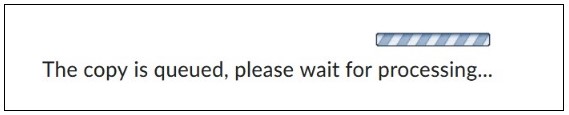
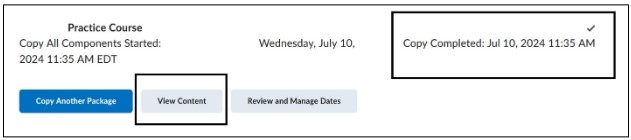
Note: Depending on the size of your course the copy process could take several minutes.
For more information and assistance, please email the Office of Digital Learning - Learning Management System Support at LMS.faculty@jjay.cuny.edu
Course Copy Components Video