

Copy Course - Specific Items
Use these steps to copy a specific item or set of items (e.g., a quiz or readings) from one Brightspace course to another.
Copy Course – Specific Items
- Select the course that you would like to copy the materials into from the My Courses widget.
Image
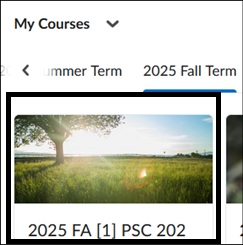
- Within the course, select Course Admin on the blue Course Navbar.
Image

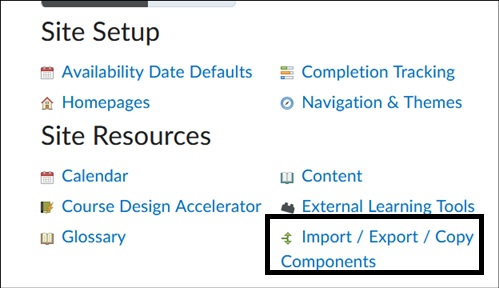
- On the Course Administration page, under Category, select Import/Export/Copy Components.
Image
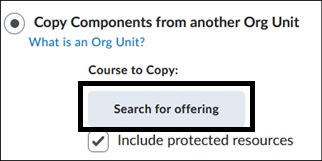
- On the next page, under Copy Components from another Org Unit, select Search for Offering.
Image
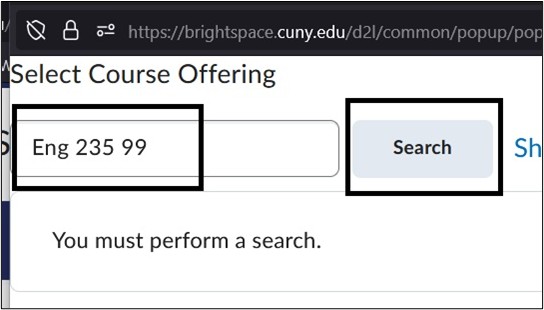
- A pop-up box will appear; enter the Course Name and select Search.
Image
- Once the course appears, select the radio button to the left of the name and select Add Selected.
Image
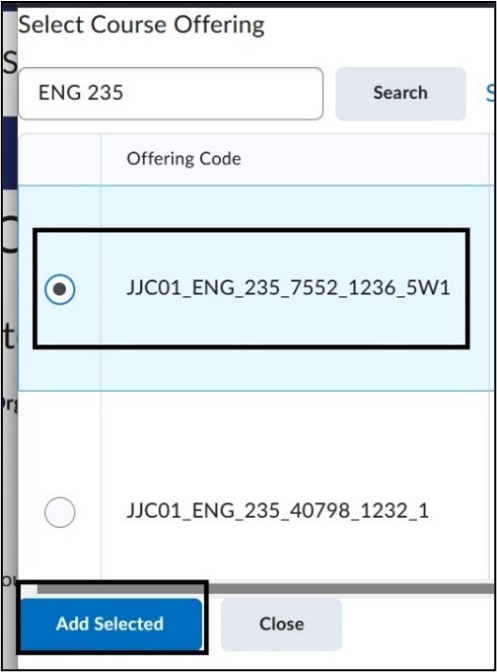
Note: Make sure to select the correct Semester and Course Section.
- At the bottom of the page, choose Select Components.
Image

- On the Choose Components to Copy page, scroll down the page to select the individual items. Select the Component box and then Select Individual items to copy. Select Continue at the bottom of the page.
Image

Note: If you are selecting items such as a graded assessment like a Quiz, you can also check off the Grades Components and copy the individual corresponding Grade item. If you do not check Grades, and you are copying a graded assessment, make sure to select Add to Gradebook in the item’s settings once it is copied over into the new course.
Image

- On the next page, select the specific item(s) you want to copy. Select Continue.
Image

- On the Select Course Materials page, confirm the items selected to copy. Select Modify if changes are needed. Select the Offset Dates box if you would like to adjust the availability dates of the items when copied. This is not required, and dates can be adjusted after copying the items. Select Finish to start the copy process.
Image

- On the Copy Course Components History page, the copy will show as in progress. Once the copy shows as Completed, go to the where the item would reside such as the Quizzes page to view and edit the content.
Image

Image

For more information and assistance, please email the Office of Digital Learning - Learning Management System Support at LMS.faculty@jjay.cuny.edu