

Create and Manage Groups in Brightspace
In Brightspace, a Group Category is a way to organize and manage sets of student groups within a course. For example, you might create a “Project Teams” category that contains multiple groups of students working together on different projects. Essentially, the group category is the top-level structure that holds and defines the rules for the individual groups inside it.
Access Groups
- In the course, select More on the Course Nav bar. Select Groups from the drop-down menu.

Create Group Category
A Group Category is a way to organize related groups. For example, you can create a Group Category called Group Project and then the groups within it will be named Group 1, Group 2, Group 3.
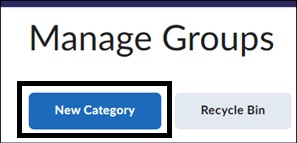
- On the Manage Groups page, select New Category.

- On the New Category page, under Category Name, enter a name for the Group Category. Enter a Description for the Group Category. The Group Prefix field can be used to add additional descriptive information to each group name, such as “Final Project Group…” and each resulting group will be consecutively numbered.
- Under Enrollment Type, choose how you want your group enrollments to be assigned.

- # of Groups – No Auto Enrollments – set the number of groups, and the instructor will manually assign learners to groups.
- Groups of # – set the group maximum capacity, for example groups of 4 members.
- # of Groups – set a limit on the number of groups, for example a total of 7 groups.
- Groups of # – Self Enrollment – set the group capacity and allow students to self-enroll.
- # of Groups, Capacity of # – Self Enrollment – set the group capacity, number of groups, and allow learners to self-enroll.
- Single user, member-specific groups – set up groups of 1.
Depending on which Enrollment Type is selected, additional fields regarding the number of groups, number of users, and other enrollment-related options will appear and must be completed.
- If Groups already exist in a course, the Restrict Enrollment To field will appear. Under the Restrict Enrollment To options, instructors can create sub-groups, based on Section or Group enrollment, within the Groups tools. Typically, this setting is not needed and can remain on the default setting of No Restrictions. Under Group Prefix, a distinctive prefix to each group name can be entered. If this field is left blank, the prefix defaults to Group. Group names can be changed after they are created.

Advanced Properties
Depending on the Enrollment Type selected, different options will appear under Advanced Properties. If you choose the Groups of # or # of Groups enrollment types, you will have three additional options.
- Auto-enroll new users – If enabled, this setting will automatically add any new learners to a group in this category if they are added to the course later.
- Randomize users in groups – If enabled, this will enroll learners in a random order. If this is not enabled, learners will be enrolled based on their order in the Classlist.
- Make category and group descriptions visible to group members – This will display headings to learners when accessing the Group page.

Instructors may save the groups at this point or move forward to Additional Options to add optional workspaces for group use. Group Discussions, Lockers, and Assignments can be added after Groups are created by returning to the Manage Groups page and re-entering the Groups creation page.
Select Save at the bottom of the page, and the Information: Group Creation dialog box appears. The box will alert instructors that the Groups are being created.

Additional Options
The Additional Options selections allow instructors to create optional workspaces for groups such as Group Discussions, Group Lockers and Group Assignments. These workspaces can be omitted or used in any combination.

Set up Discussion areas – Selecting this option will create a Discussion Topic restricted to group members only on the main Discussions Tool page. The instructor can also view and participate in the discussion. Group discussions can also be assigned on the Discussions Tools page within a Topic under Availability Dates & Conditions > Group and Section Restrictions.
- When selecting the Set-up Discussions areas options, a Forum drop-down box will appear, allowing you to add the topic within an already created forum or create a new forum.

- If you are not adding Lockers or Assignments, you may save the group. The Information: Group Creation dialog box will appear if the group has not already been saved.
- After a Group has been created that includes Group Discussions, the Create Restricted Topics page will appear. On the Create Restricted Topics page, there are two options:

- Create one topic per group, creates a unique Topic for each group within a Forum and a Grade Item for each topic that automatically includes all learners. Please note: this option is not recommended for graded group Discussions. The Grade Item created when this option is selected does not exempt learners in specific groups. Select Create and Next button to complete the process.
- Create one topic with threads separated by group, which as the name implies, creates one topic for all groups, but with each group posting to their own thread. This is the default setting. Only group members will see other group members’ posts within that topic, but instructors will see all posts from all groups. The Group name is automatically assigned to the learner’s thread title when they post. This setting is recommended for graded Discussion Topics.
Set up lockers – Selecting Lockers allows learners to upload and share files with other learners in their group. If this workspace is selected, it will appear under Locker column on the Manage Groups page.

To access the Group Locker, click the Group Files link. Instructors may upload files to the Group.

Set up assignment submission folders – A group assignment can be created within Groups, allowing one group member to submit for all members within the group. Although the Group Assignments screen may be formatted differently, the same options available when creating standard assignments are available here. Please see our Create a Brightspace Assignment how to for more information. Additionally, Group Assignments can be created on the main Assignment creation page and assigned to the group under the Submission & Completion settings. Group Assignments appear in both the group itself and on the course’s main Assignment tool page.

Manage Groups
The Manage Groups page is the entry point for editing existing groups and accessing Group workspaces. If multiple group categories exist in a course, you can navigate between the categories on the Manage Groups page.
To access the Groups, select More on the Course Nav bar, then Groups from the drop-down menu. Select which group will be displayed by selecting the View Category drop down menu.
Image
- To edit the Group Category and settings, click on the drop-down arrow to the right of the Group Category name and select Edit Category. Additionally, you can add more groups, enroll users, email group members and delete the Group Category if needed.

View Create and Manage Categories and Groups
For more information and assistance, please email Office of Digital Learning - Learning Management System Support at LMS.faculty@jjay.cuny.edu