

Create an Announcement
The Announcement tool can be used to create and schedule regular communication with all learners enrolled in a course. Announcements are posted in the course and sent out via email automatically when the course is set to Active.
Access Announcements
In the course, select Announcements on the Course navbar.
Image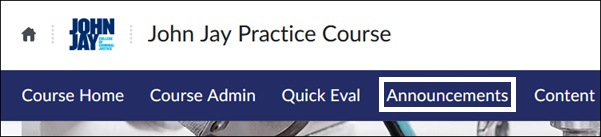
On the Announcements page, select New Announcement.
Image
On the New Announcement page, under Headline, enter a Title for the Announcement. Select Display Author Information if you want your name displayed with the announcement.
Image
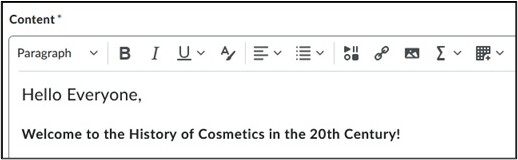
- In the Content box, enter the Announcement message. Select the Insert Stuff button to add additional content in the announcement message.
Image
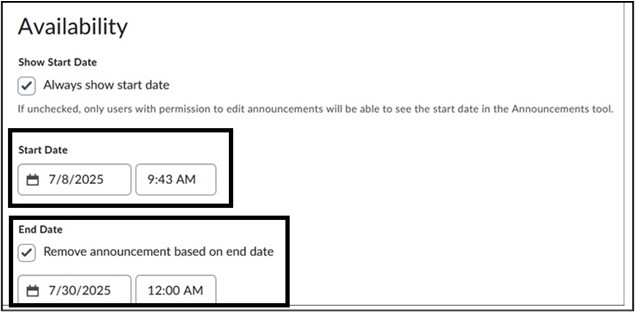
- Under Availability, enter a Start Date for the Announcement. The Start Date is when the Announcement is visible to learners and will be sent out via email. If a Start Date is selected for a future date, it will display as Scheduled. An End Date can also be chosen, if this option is selected, on that date and time, the announcement will no longer be visible to learners.
Image
- Under Attachments, additional files can be attached to the announcement as well as audio or video files. Release Conditions can be set for the announcement. Select Publish to post and send out the announcement via email. Select Save as Draft to resume later.
Image

Edit an Announcement
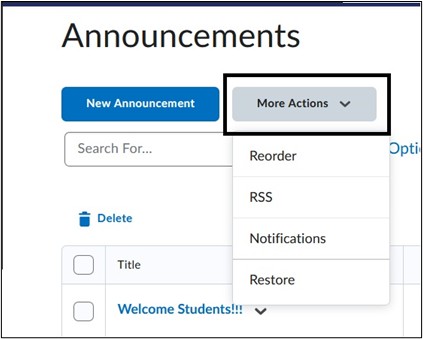
- To edit an announcement, click on the blue Announcement Title. To access additional settings, select the downward arrow to the right of the title name. Under the More Actions menu, reorder announcements or restore deleted announcements.
Image
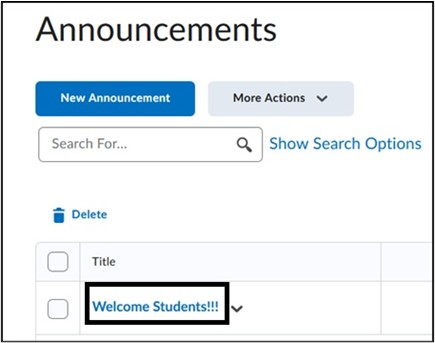
- Under the More Actions menu, reorder announcements or restore deleted announcements.
Image
View Announcement Overview video.
For more information and assistance, please email the Office of Digital Learning - Learning Management System Support at LMS.faculty@jjay.cuny.edu