

Website Upgrade & Changes to Website Editing
We upgraded the website content management system (from Drupal 9 to Drupal 10) in early July.
Website editors will notice four changes to how the site is edited::
- The editing toolbar
- Adding and editing links
- Applying ALT text for images
- Adjusting multimedia content
You can find details about these changes below and at #2 on the Website Content Management Resources page.
1. Toolbar
- The “paste from Word” button was removed due to redundancy.
- “Add link” and “remove link” were merged into a single button.
Both options appear when the button is clicked.
Old toolbar

New toolbar

2. Add, edit & remove links
Old process - Click "link" on the toolbar, insert the URL into the dialog box that appears and click "Save."
To view or edit the link in the dialog box, click the link then the "Link" button. To remove the link, click the link then the "Unlink" button.
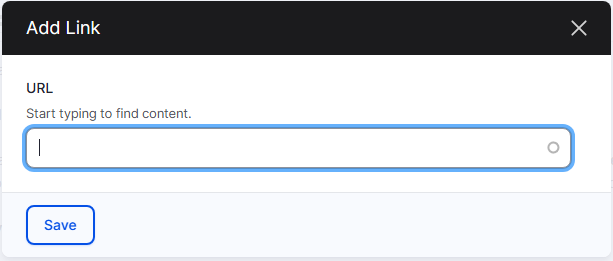
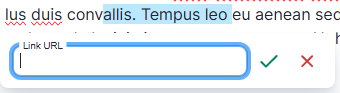
New process - Click "link" on the toolbar and a panel with a green check and red cross mark will appear. Add a link by populating the link field and clicking the green check. To remove, edit or view the link, click on the link. On the panel that appears, click "edit," "unlink" or “open link in a new tab.”
3. Add & edit alternative text
Old process - When you add an image from your computer, type the alternative text into the dialog box that appears. (Alternative text, or ALT text, is a description of an image for those who cannot see the image. It is critical for people who use screen readers, an assistive technology, to access information about the image.) To edit the ALT text, click on the image then the "Image" button. Change the ALT text in the dialog box that appears. When you add an image from the Media Library, click "Edit media" and type the alternative text into the dialog box that appears.

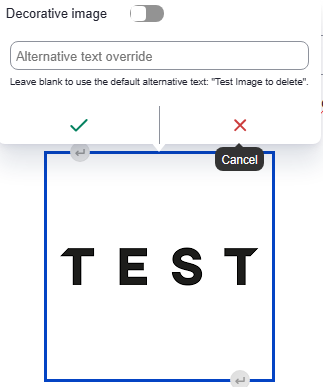
New process - When you add an image from your computer, a panel with a green check and red cross will appear. Type the ALT text and click the green check. To edit the ALT text if the image was uploaded from your computer, click "Change image alternative text." To change the ALT text if the image was added from the Media Library, click "Override media image alternative text."
Decorative images - ALT text is not necessary for images that are purely decorative and do not convey information necessary for the user to understand page content. To indicate that an image is decorative only, toggle the “Decorative image” button to the right.
4. Adjusting multimedia
Old process - editors were not able to adjust embedded media.
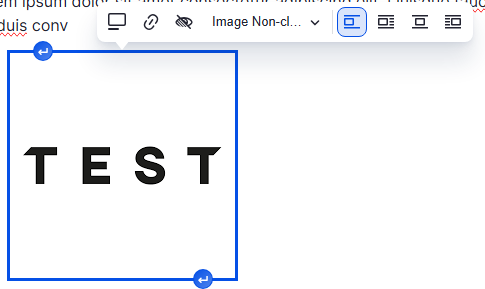
New process - A dedicated media toolbar appears when you add an item or click on an item that was already added. You can adjust the ALT text; align it left, right or center; wrap or break the text; add a caption or link; or resize.
If you have any questions, please reach out to Aaron Fineman or Anh Phan.