

Pass/Fail Grade Schema in Brightspace
Using a Pass/Fail grade schema in Brightspace allows instructors to assess learner performance which will display a simple Pass or Fail text instead of traditional numeric or letter grades. It can be applied to any grade item. Please note that this is different than the Pass/Fail Grade item type which will only display points possible to learners and not text.
Access Schemes
- Select More on the Course Navbar. Select Grades.
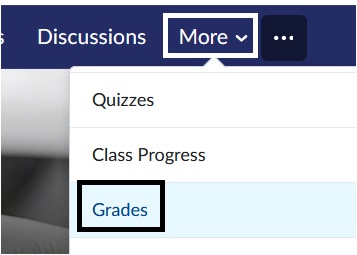
- Select Schemes.

- Select New Scheme.
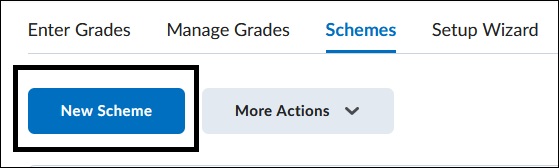
Set up your scheme
1. Enter a Name for the Schema. For example, Pass/Fail Scheme

2. Under Ranges, enter "Fail" for Range 1 under Symbol. The Symbol is what will appear to students on their Grades page. Set the Start % and Assigned Value % to 0 (or your chosen failure threshold). Setting a color is optional. This will appear in the Grade Scheme Symbol column on the Grades page for the learner.
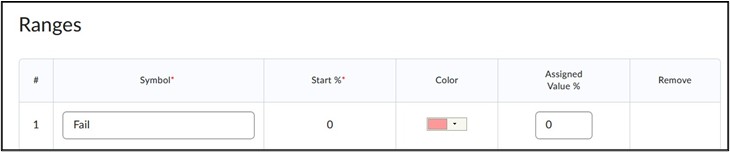
3. For Range 2, enter "Pass" under Symbol, set Start % to 1 (or your chosen pass threshold), and Assigned Value % to 100. Click Save and Close to apply changes.

Assign New Schema
Once the Pass/Fail Schema is created, you must assign it to the specific grade item and edit the Student View display options.
- On the Grades page, select Manage Grades link.

2. Click on the Name of the Grade item that you want to set as Pass/Fail.
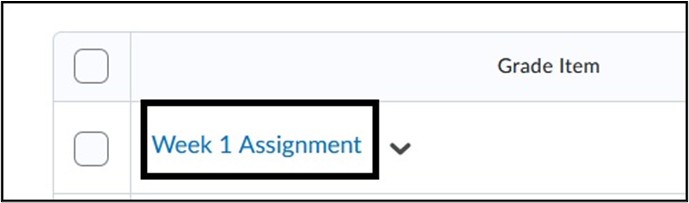
3. On the Edit Items page, scroll down to Grade Scheme and select the Pass/Fail Scheme from the menu.

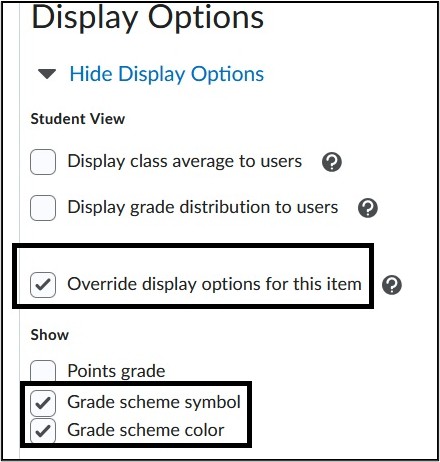
4. Under Display Options – Student View, select Override display options for this item. Deselect Points Grade and select Grade Scheme symbol. This will display the Pass/Fail only and not the Points Possible of the assessment. Select Grade Scheme color if a color is assigned in the schema. Select Save and Close.
Student View of Pass/Fail Schema
Once you assign the new schema and enter a score on your end, students will see their grade like this example:
Learner’s Grade Page -

For more information and assistance, please email Office of Digital Learning - Learning Management System Support at LMS.faculty@jjay.cuny.edu