

Regrade a quiz after attempts has been made
Regrade a quiz after attempts have been made
Brightspace Quizzes do not automatically apply score changes when a question is edited after student attempts are made, so the quiz must be manually regraded to ensure all students were scored fairly.
Update the quiz question
In the course, select Quizzes on the Course navbar.
Image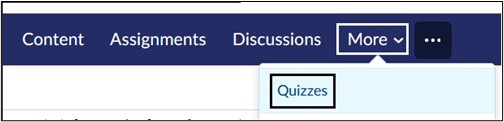
Select the Title of the Quiz link in blue that you wish to edit.
Image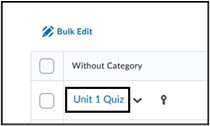
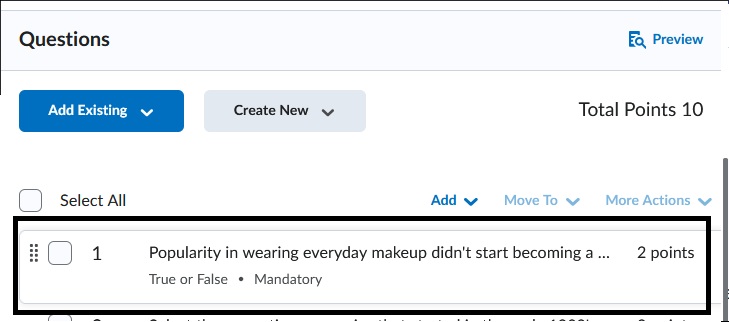
- Under Questions, select the question you want to edit. Make changes to the question and select Save. Select Save and Close at the bottom of the quiz to update.
- Image
Adjust Learners responses and scores
- In the course, select Quizzes on the Course Navbar.
- Image
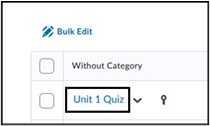
2. Select the drop-down arrow to the right of the Quiz Name. Select Grade.
Image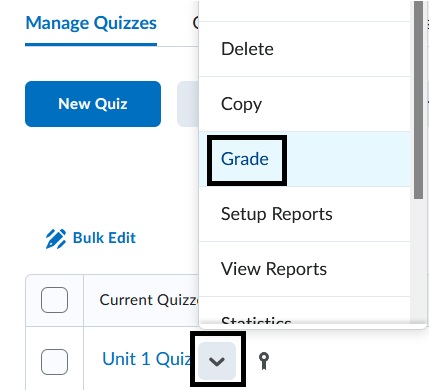
3. Select the Question Tab. When a question is edited after attempts are made, a new duplicate version of that question is placed in the quiz. Learners who take the quiz after the change will receive the corrected question. Select which option applies to the question correction. There are two options, Grade Individual Responses or Update all attempts.
Image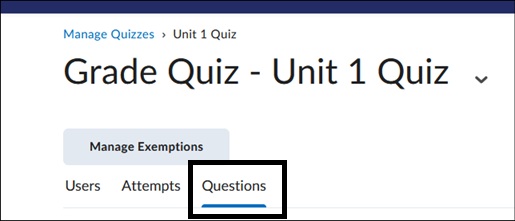
- Image
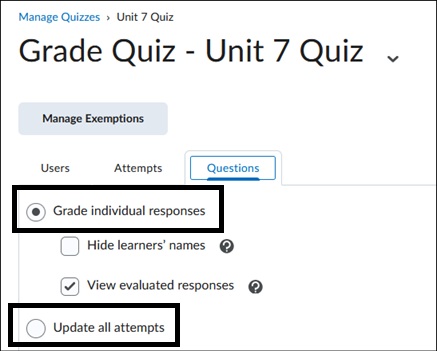
4. Once the selection is made, at the bottom of the page, under Questions that are not in the quiz anymore, the old version of the question will be listed. This is where you adjust the scoring for those who took the quiz with the incorrect question before the change. Select the title of the old question.
Image
5. Depending on what selection you chose previously (Grade Individual responses or Update All Attempts) the selections will display differently.
If you chose, Grade Individual Responses:
You will see each individual student's response for this question, and you can grade each attempt individually. Click Save and Continue button to save the changes for each student until you reach the last attempt. Select Go Back to Questions to update other questions.
Image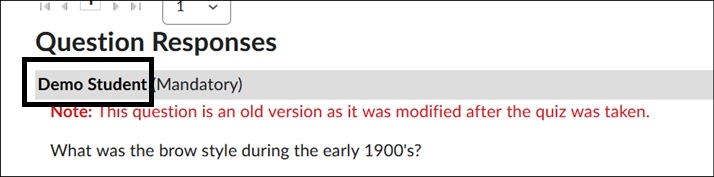
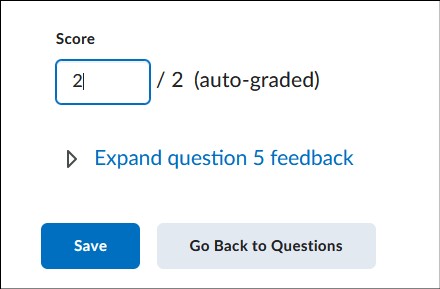
If you chose, Update All Attempts:
You will see how many attempts have been completed for the question. Under Grading Type, you can either give all attempts a certain point value or you can give attempts with a particular answer a certain point value. Select Save button.
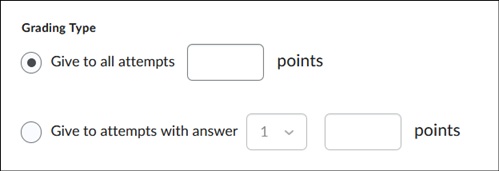
Updating new scores in the grade book
Now that students' scores have been updated in the individual quiz, you may need to update new scores in the grade book.
Select Quizzes on the course navbar.
Image
- Select the downward arrow to the right of the Quiz Name. Select Grade.
3. Check off the Select All box at the top left of the page. Make sure that all learners are selected on one page. Select Publish Feedback button.
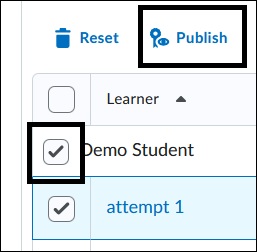
4. Select Yes to confirm in the pop-up window. This will send the updated scores to the Grade item on the Grades page.
For more information and assistance, please email Office of Digital Learning - Learning Management System Support at LMS.faculty@jjay.cuny.edu