

Using Assignments in Brightspace
Brightspace Assignment Types
Instructors can create Brightspace assignments in one of four submission types:
- File submission: Upload an assignment file from your computer. Common file types include documents, PDFs, presentations, spreadsheets, and other files depending on the settings your instructor has set.
- Text submission: Type your assignment as text or link to your assignment within the text editor.
- On paper submission: this option allows you to submit your assignment as a physical copy. Your instructor can provide feedback within your Grades.
- Observed in person: your instructor allows you to work on your assignment during in person lecture. They can provide feedback for the assignment.
Submitting an Assignment
In the course, select Assignments on the Course navbar.
Image
Note: Instructors can also place links to individual assignments within modules in Content.
2. Select the Title of the Assignment to access the submission area.
Image
Note: If an assignment is displaying in black font and not clickable, this means that the assignment is either not available yet or past the End Date. Notice the availability dates listed and reach out to your instructor for further assistance. ODL LMS Support cannot make any changes to courses in Brightspace.
3. On the Submission page, review the Assignment information. Select Add a File button to attach a file. A maximum file size of 2GB can be uploaded. Make sure you are submitting in a compatible file format such as Microsoft Word or PDF. Select Submit button to complete your submission.
Image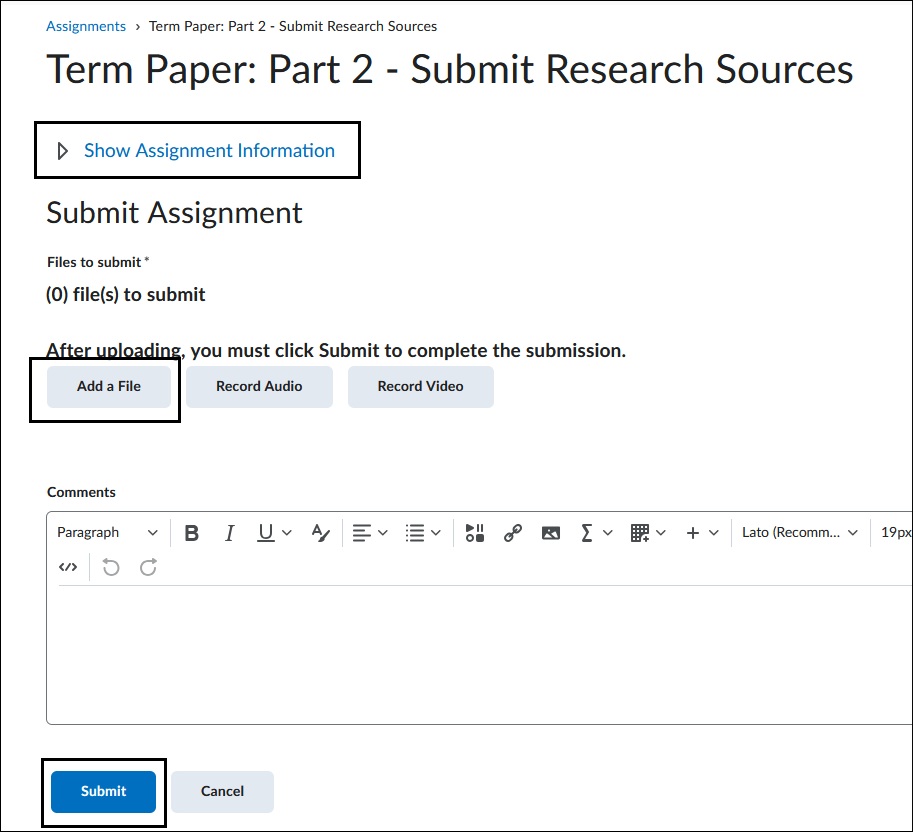
4. Once you have properly submitted, you will see the Review Assignment Submission page. Select View History to view your submission information and take a screenshot for your records.
Image
Important things to remember when submitting assignments in Brightspace:
- Check assignment instructions: Review the requirements, accepted file format, AI Use and Plagiarism Policy and any additional guidelines.
- Pay Attention to Due Dates, End Dates and Time Zones: Instructors can set End Dates for assignments that restrict submission access. If you are taking an online course from a different state or country, note that CUNY Brightspace uses Eastern Standard Time Zone.
- Submit the correct file: Double-check that you are attaching the correct and most recent version of the assignment file.
- Confirm your submission: Review the Submission History page and click on your file submission to make sure it was uploaded properly. Many instructors will penalize for not submitting correctly.
- Allow time for technical issues: Do not wait until the last minute to submit your work. If you have an issue, contact your instructor immediately and also email LMS.student@jjay.cuny.edu for assistance.
- Keep a backup copy: Save your assignment in more than one place in case you need to resubmit or verify your work.
For more information or assistance, please email Office of Digital Learning - Learning Management System Support at: LMS.student@jjay.cuny.edu