

Using Discussions in Brightspace
Brightspace Discussions give students a space to share ideas, ask questions, and engage with classmates outside of class time. It’s a way to participate in course conversations by posting original responses, replying to others, and reflecting on different viewpoints. Discussions allow students to demonstrate understanding, build communication skills, and stay connected with the class in an organized, asynchronous format.
Access Discussions
- In your course, select the Discussions link on the Course navbar.

Note: Instructors can also post links to Discussion Topics within Modules in Content.
2. From the Discussions List tab, select the Topic Name in blue.
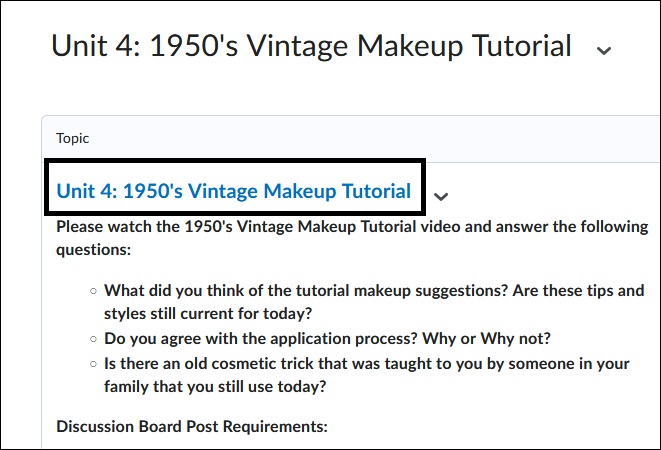
3. Within the Discussion Topic, select the Start New Thread button to begin writing your response.
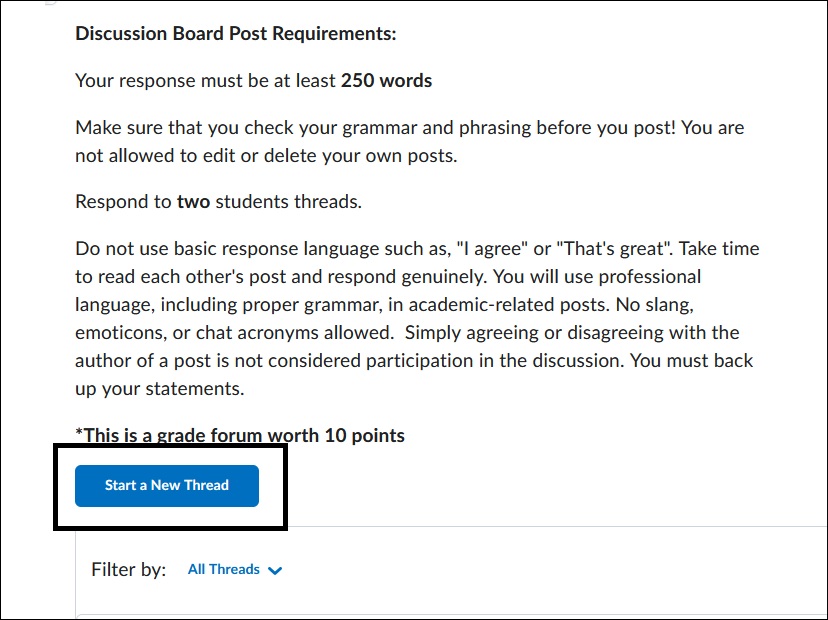
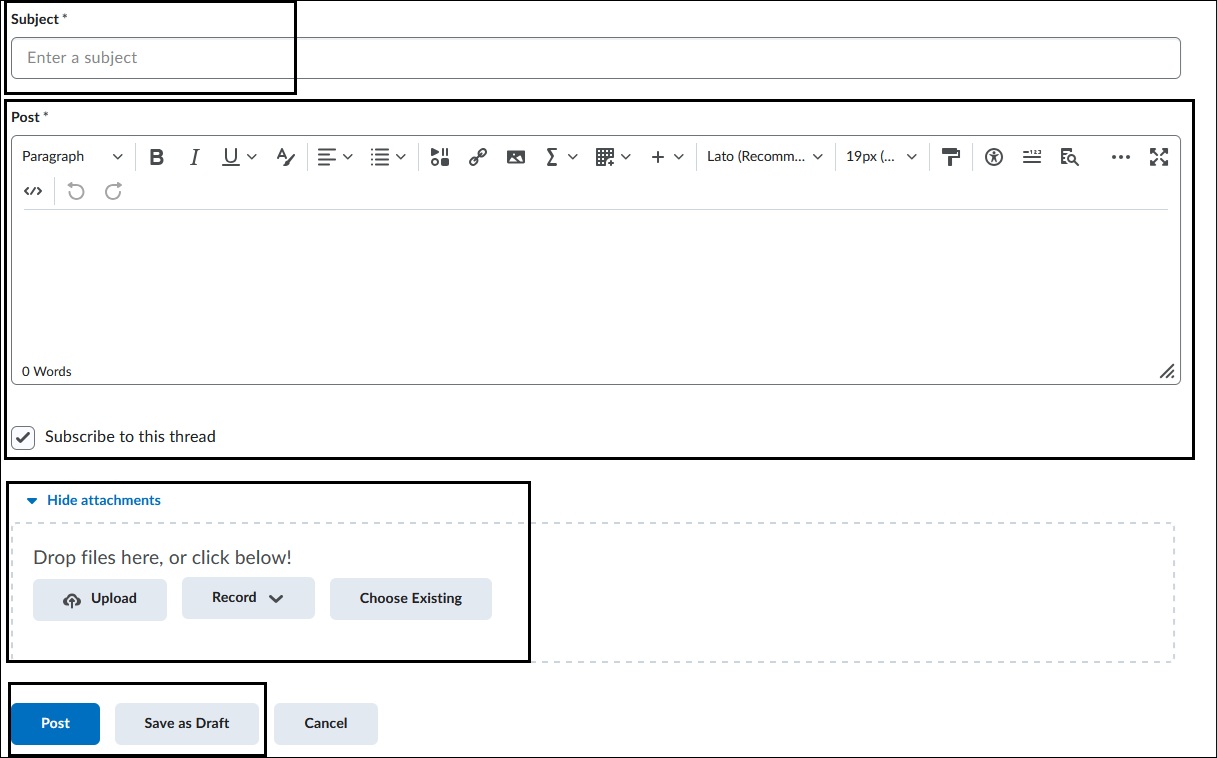
4. Enter a Subject to title the thread. Type your response in the text editor box. Format
your text or add links using the Insert Stuff button on the text editor ribbon. You can add
additional attachments through the Add Attachments link. Select the Post button when
you are ready to submit your thread.
Important things to remember when posting in a Discussion:
- Read the prompts and instructions carefully. Make sure you understand what the instructor is asking, including word count, due dates and reply to requirements.
- Post on time. Initial posts and replies often have different deadlines. Do not wait until the last minute to post.
- Be mindful and respectful. Use appropriate language, stay on topic and respond to classmates in a constructive way.
- Add meaningful content. Provide meaningful discussion. Do not be vague or give short responses.
- Proofread before posting. Check your spelling, grammar, and clarity. Remember discussions are often part of your academic work.
- Cite sources if needed. Include proper citations if using outside materials and sources.
For more information and assistance, please email Office of Digital Leaning - Learning Management System Support at LMS.student@jjay.cuny.edu