

Blackboard Course Export
Blackboard Course Export
View Instructions as PDF: Blackboard Course Export
CUNY will retire Blackboard on December 18th, 2025, after which it will no longer be accessible. While CUNY will maintain course archives as required under university policies and by applicable law, faculty may wish to download from Blackboard personal copies of their course content before that date.
Please note, although it is possible to import Blackboard course export files into other Learning Management Systems such as Brightspace, for best results, the Office of Digital Learning LMS Support team recommends downloading individual files from Blackboard and recreating courses in the new LMS in their entirety.
ODL LMS Support recommends faculty use the Export Course function to retain personal course copies. The Blackboard Export Course feature creates a ZIP file of your course content that you can import into other LMS courses, including documents, quizzes, and assignments.
The Export Course feature does not include any users, user interactions with the course, or student data. Course archives containing student data are not recommended to retain personal copies of course content as course archives containing student data are subject to university and Federal data, privacy, and security policies and should not be stored on non-CUNY storage platforms.
Access Blackboard
- Go to https://www.cuny.edu/ and select Login in the upper right. Select Brightspace/Blackboard from the drop-down menu. On the right-hand side of the Brightspace/Blackboard page, select Login to Blackboard.
- On the CUNY Login page enter your CUNY Login credentials. CUNYLogin usernames are firstname.lastname##@login.cuny.edu.
Export Course in Blackboard
Within Blackboard, select the Courses icon on the left side menu.
Image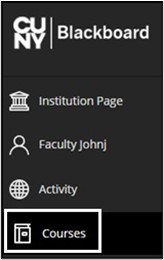
Select the Course from which you want to export course content. Use the Search your courses and Terms tools to filter for a specific semester. Select the Course Name to access the course.
Image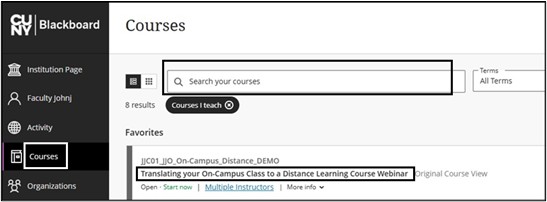
- In the course, navigate to the Course Management panel in the lower left > Select Control Panel > Packages and Utilities > Export/Archive Course.

- On the Export/Archive Course page, select Export Package.
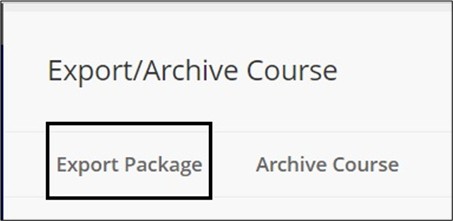
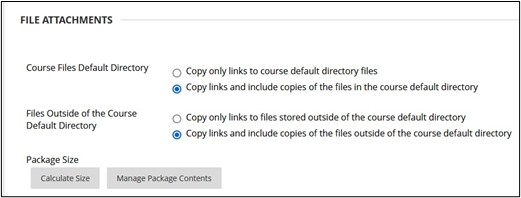
- Under File Attachments, keep all default selections. No changes need to be made.
- In the Select Course Materials section, choose Select All to export all course materials.
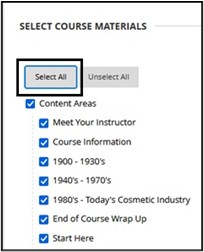
- Select Submit to create the export file.
Download Export File
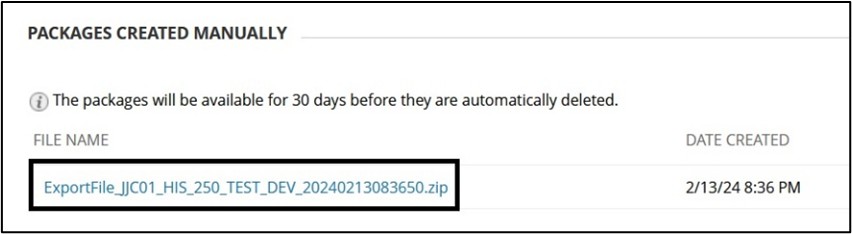
Once the Export file has been created it will be listed under Packages Created Manually - File Name.
- Select the blue file name link to download the zip file to your computer’s default location for file saves.
Important Notes: Blackboard Course Export files cannot be opened outside of an LMS. These files can be imported into Brightspace. Access Export Blackboard Course and Import into Brightspace for more information.
CUNY provides cloud storage services for files in CUNY Office 365
View Blackboard Course Export Video
For more information and assistance, please email Office of Digital Learning - Learning Management System Support at LMS.faculty@jjay.cuny.edu