

Edit Grade Display View for Students and Instructors
In Brightspace, instructors can customize grade display views for individual Grade items or the entire Grade Book, for both students and themselves.
Change the Grade Display for a specific item
- In the course, select Grades on the course navbar. If you do not see Grades, select More > select Grades from the dropdown menu. Instructors can also access Grades through the Course Admin link on the Course navbar.
Image

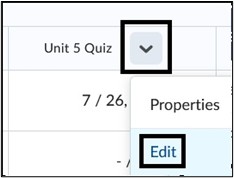
- On the Enter Grades page, find the title of the graded item that you want to change the grade display for. Select the action menu arrow to the right of the item name and select Edit
Image
- On the Properties tab, scroll down to Display Options > Student View > Select Override display options for this item. Under Show deselect any grade options that you no longer want visible to the students. For example, if you only want the points of the assessment to display to students, deselect all boxes EXCEPT Points Grade.
Image
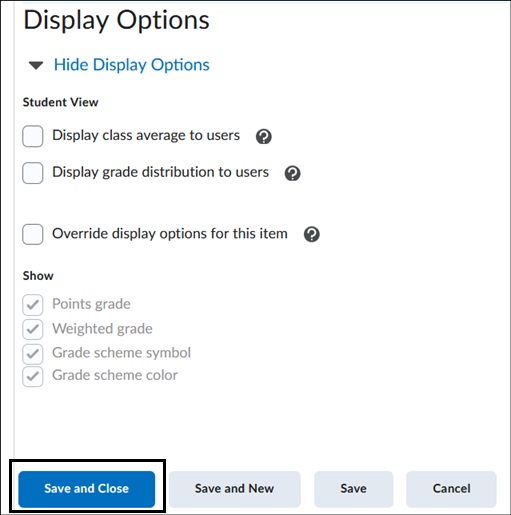
Note: The Grade scheme symbol refers to a Letter Grade in Brightspace.
Instructors can also edit this specific Grade Display for a grade item in their Grade Book by selecting Override Display Options for this item under Manage View on the same page. This allows instructors to have one grade view while the students can have another. Select Save and Close at the bottom of the page to hold all changes.
Image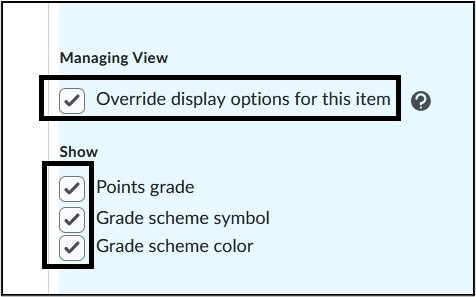
Change the Grade Display for all items in Grades
- In the course, select Grades on the course navbar. If you do not see Grades, select More > select Grades from the dropdown menu. Instructors can also access Grades through the Course Admin link on the Course navbar.
Image

- On the Enter Grades page select the Settings gear icon in the upper right corner
Image

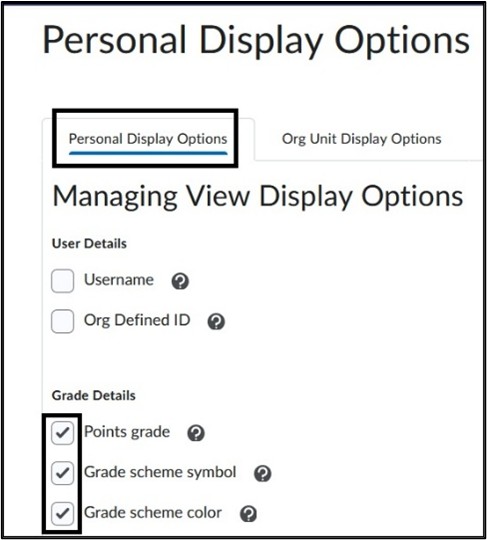
- On the Personal Display Options page select the Personal Display Options tab > Grade Details to set what is displayed for Instructor View. These settings are only for how the grades reflect to instructors in Grades. Changing these settings will change the display for all items on the Enter Grades page.
Image
- To change Student view for all grades items in a course select the Org Unit Display Options tab. Under Student View Display Options > Grade Details, deselect any views that you do not want displayed to students. For example, if you only want points to display on the Grades page for all assessments, deselect all boxes EXCEPT Points grade. Select Save to hold changes.
Image

For more information view Grade book setup
For more information and assistance, please email Office of Digital Learning - Learning Management System Support at LMS.faculty@jjay.cuny.edu