

Quizzes in Brightspace
Access Quizzes
- Select Quizzes on the Course navbar.

Note: Instructors can link to individual quizzes within a module in Content.
2. On the Quizzes page, select the Quiz Title in blue.
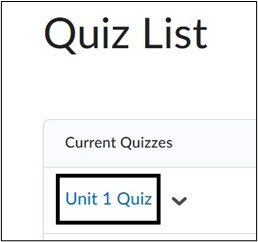
3. Review all quiz instructions and select the Start Quiz button to begin.
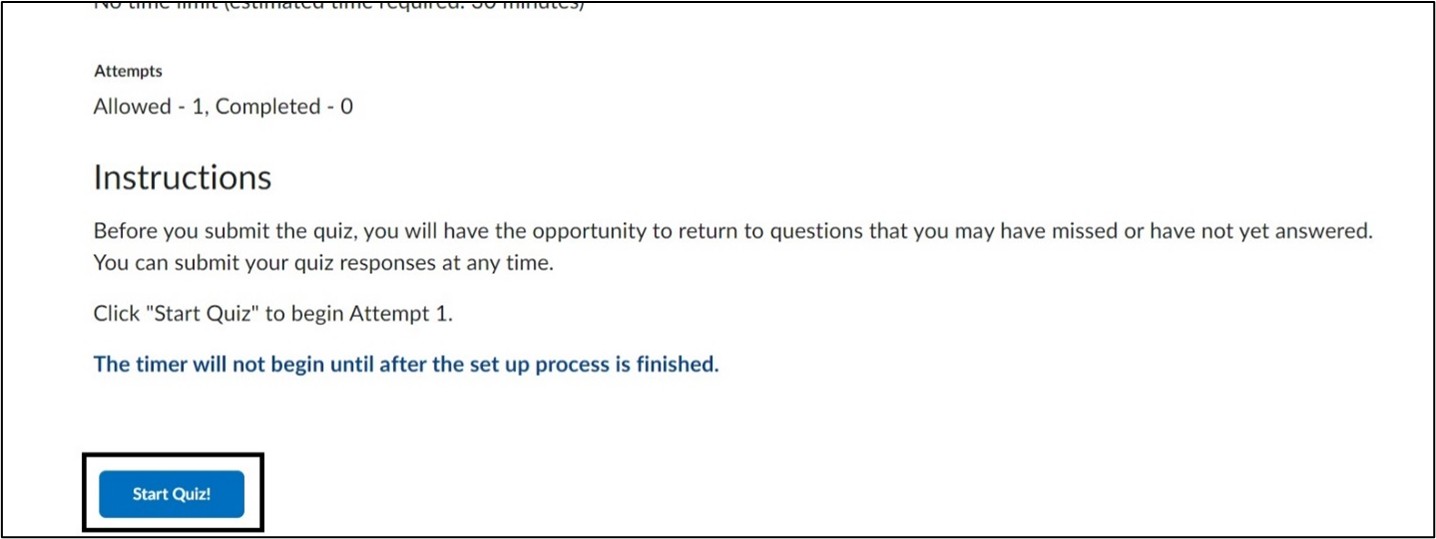
Note: If you do not see the Start Quiz button or have issues accessing your quiz, email your instructor immediately. ODL LMS Support cannot grant access to quizzes.
4. On the Quiz page, questions will appear. Instructors can choose to display questions all at once, one or multiple questions per page. The timer will appear in the upper right. You can hide the timer if you wish. Quiz information and the number of questions will appear on the left side under the Quiz Name. Questions are automatically saved once selected and will display “Saved” next to the question number.
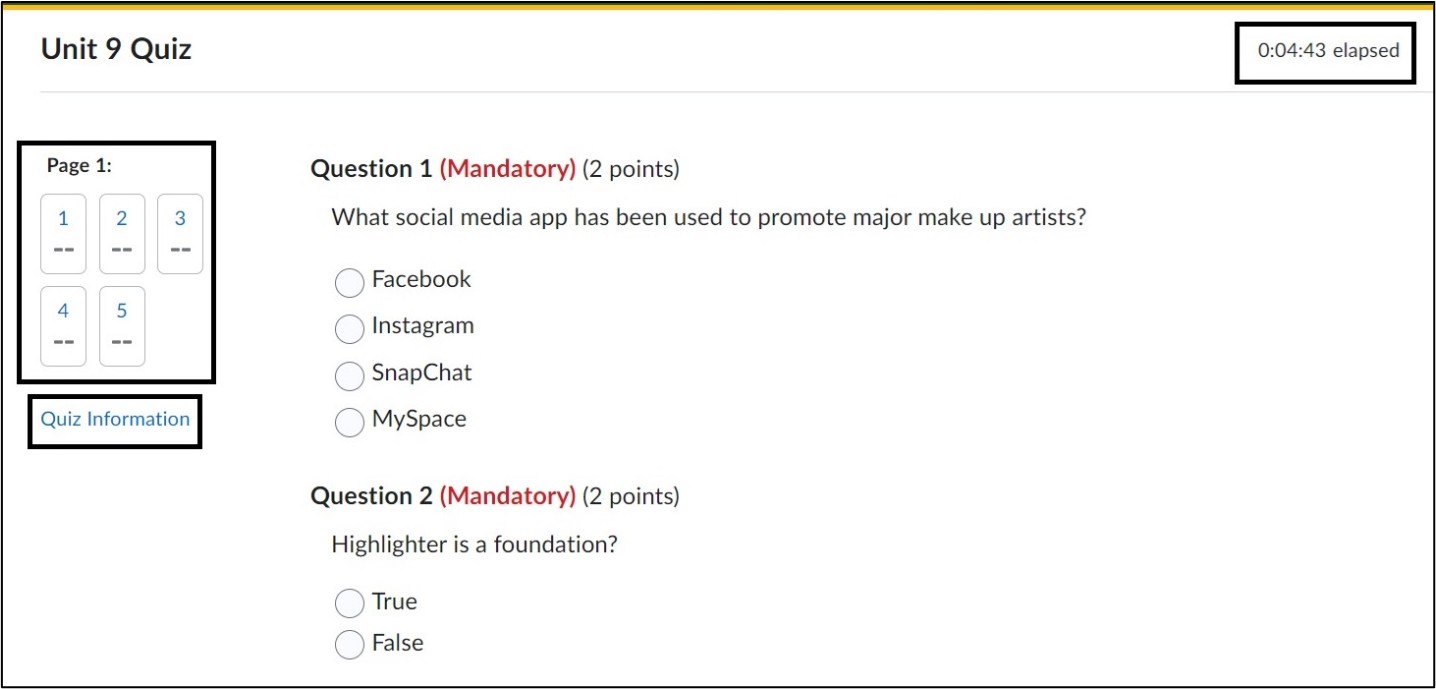
Note: If you see Mandatory in red text, it means that you must answer the question. You will not be able to submit the quiz until all answers are selected.
5. Once all questions are answered, select Submit Quiz.
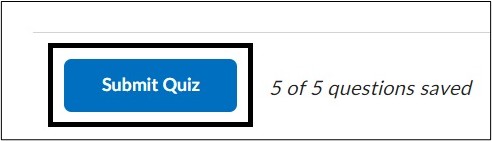
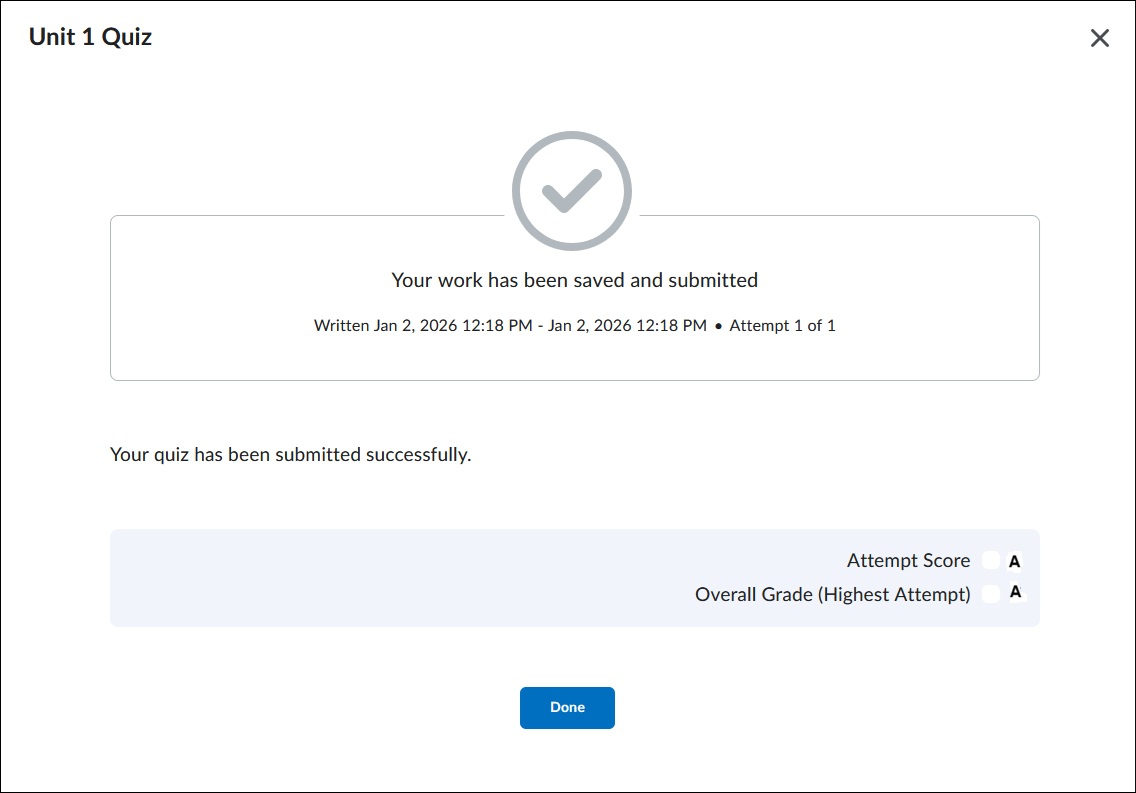
6. Once your submission is saved, you will receive a confirmation page. Depending on what the instructor has set to release after the submission, you will see that in the lower right corner.
Important things to remember when taking a quiz in Brightspace:
- Read Instructions carefully: Before starting, check the time limit, number of attempts and any specific rules.
- Check Technical Requirements: Make sure you have a strong internet connection, use a supported browser (Brightspace works best with Mozilla Firefox or Google Chrome). Close all other tabs and programs.
- Type of Device: Students must take a quiz on a desktop or laptop computer. Mobile devices are not recommended and may cause issues.
- Manage Your Time: Be mindful of the total time of the quiz and pay attention to the timer.
- Technical Issues: If you have any issues while taking a quiz, email your instructor and ODL LMS Support (LMS.student@jjay.cuny.edu) immediately. It is up to your instructor if they want to grant an additional attempt if needed.
For more information and assistance, please email ODL LMS Support at: LMS.student@jjay.cuny.edu