

Web Browser Recommendations in Brightspace
Using an up-to-date and compatible web browser is essential for ensuring the best experience with Brightspace. Some web browsers (such as Safari and Microsoft Edge) may not support key functions, leading to display issues, slower performance, or even access problems with assessments within courses.
For the best Brightspace experience, the Office of Digital Learning – LMS Support recommends using:
When accessing Brightspace, we recommend using a desktop or laptop computer whenever possible. Mobile device browsers, such as an iPad, are limited and not recommended for completing assessments.
Important Note: Mac users should avoid using Safari with Brightspace if possible. Safari has known issues with Brightspace, including third-party tools like Turnitin, VoiceThread, and WeVideo. If you receive an “Invalid or Missing State” error message when selecting a link to Turnitin LTI assignment, this is due to Safari. Please switch to one of the recommended browsers.
Check your Browser Settings
Many supplemental tools within Brightspace (Turnitin, VoiceThread, WeVideo) require web browsers to allow third-party cookies. Third-party cookies allow the tools in Brightspace to properly communicate to the vendor websites. When third-party cookies are restricted or disabled, users will often have display issues, receive error messages, or be unable to connect to the tool.
Allow Third-party cookies in Firefox:
- Sign into Brightspace.
At the left of the URL address bar, click the shield icon.
Image
- Toggle Enhanced Tracking Protection to OFF.


- Completely shut down and restart Firefox.
Allow Third-party cookies in Google Chrome:
- Select the vertical ellipsis or three dots in the upper right corner of the browser.
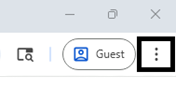
- Select Settings.
- Select Privacy and security from the left side menu.
- Select Third-party cookies.
- Once the tab expands, select Allow third-party cookies.
- Completely shut down and restart Chrome.
Clear Browser Cache
Clearing your browser cache helps resolve loading issues, ensures you're seeing the most up-to-date content for the website you’re visiting, and can improve overall performance of the web browser. Clearing your web browser cache on a regular basis is recommended for optimal performance.
Clear cache in Firefox
- Select the menu button or three horizontal lines in the upper right.

- Select Settings
- Select Privacy and Security on the left side menu.
- Scroll down to Cookies and Site Data.
- Select Clear Data…
- For Time Range (When), select Everything.
- Make sure to check off: Browsing and download history, Cookies and site data and Temporary cached files and pages are selected.
- Select Clear.
- Completely shut down and restart Firefox.
Clear cache in Google Chrome
- Select the vertical ellipsis or three dots in the upper right corner of the browser.
- Select Settings
- Select Privacy and security.
- Select Delete browsing data.
- For Time Range, select All Time.
- Make sure the following are checked off: Browsing history, Download History, Cookies and other site data, Cached images and files.
- Select Delete Data.
- Completely shut down and restart Chrome.
If you are still having issues after trying these steps please email the Department of Digital Learning - Learning Management System Support at LMS.student@jjay.cuny.edu