

Navigating a Brightspace Course
Course Home
You can access essential features such as course content, your user profile, upcoming deadlines, and calendar from the course homepage. Brightspace's design facilitates seamless navigation, allowing you to effortlessly explore modules. The dashboard is not only informative but also interactive, providing quick links to quizzes, grades, and other vital components of your academic journey. Instructors have the ability to customize and change the Course home page.
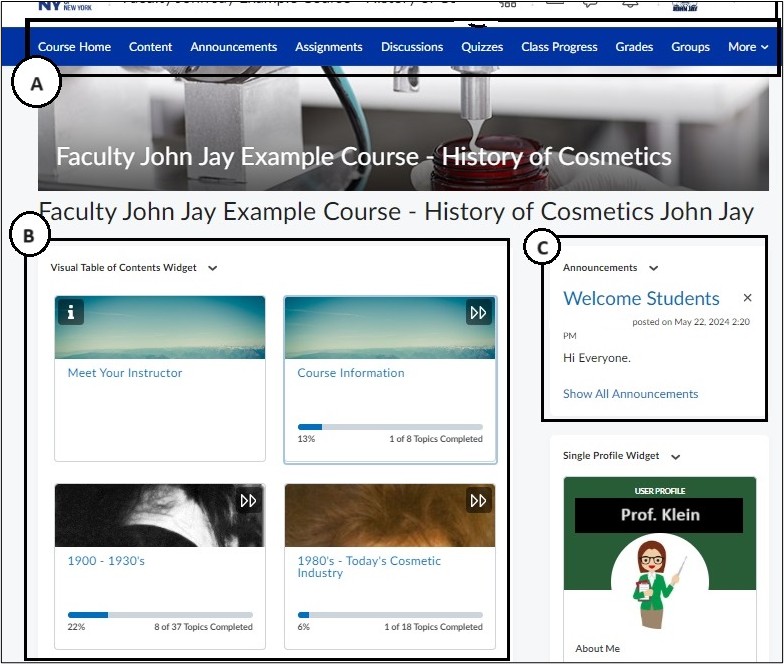
A. Course Navbar: where you will find the main components such as course content, assessments - assignments, discussions, quizzes or tests, and grades.
Note: The Course Navbar may vary by instructor.
B. Visual Table of Contents: area designated for course content, modules and resources embedded directly onto course homepage.
C. Announcements Widget: area where you can see what Announcements were posted by your instructor.
Note: Widgets and items on the Course Home page may vary by instructor and course.
Course Navbar

These may be some of the main components visible on your Course Navbar:
- Course Home: Main landing page for course which include widgets such as Announcements, Visual Table of Contents, Work to Do etc.
- Announcements: This link will bring you to the Announcements page.
- Content: instructors can post materials such as PDFs, URL links, links to assignments and other resources for the course.
- Assignments: displays Brightspace assignments.
- Discussions: contains the Discussion board and topics that you can post threads in.
- Quizzes: dedicated section where you can access quizzes.
- Grades: you can view your grades and feedback from this link
- Class Progress: section where you can track your grades, submissions, and feedback for your course.
- Groups: if your instructor sets up groups for course work, you can view information about groups here.
- Classlist: you can see a list of all students in your class here. You can also use this section to communicate with students in your class.
Note: Instructors have the ability to edit the course navbar so not all items listed above may appear.
Communication
Brightspace offers a range of communication tools to facilitate the interaction between students, peers, and instructors.
- Announcements: Instructors will post valuable information via the Announcements module
- Email: email has been integrated within the Brightspace learning environment to facilitate communication among your peers and instructors from your courses.
To send an email, follow the steps below:
- In your course, select the Classlist on the Course Navbar.
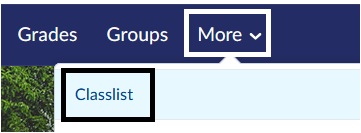
2. Select the downward arrow to the right of the name you want to email. Select Send Email.
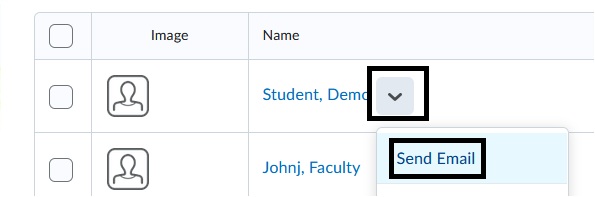
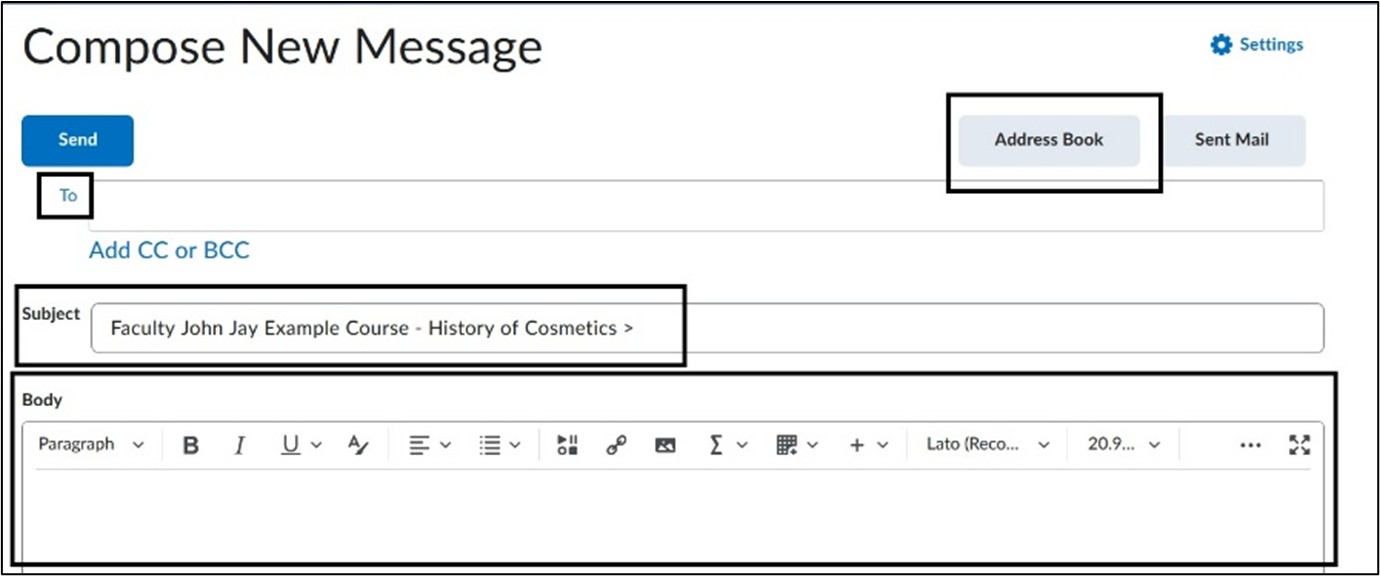
3. On the Compose New Email page, select the To option in blue to search for another student or instructor email. Enter the subject and compose your message. Select Send.
Note: Instructors have the ability to remove the Classlist from the Course navbar which will limit the ability to email within a course.
Content
Content in Brightspace provides students with centralized access to all course materials in a clear and organized format. It includes lecture notes, readings, videos, and structured modules that align with the course schedule.
- Select Content on the Course Navbar.

2. On the Content page, on the left side shows Overview, Bookmarks and Course Schedule.
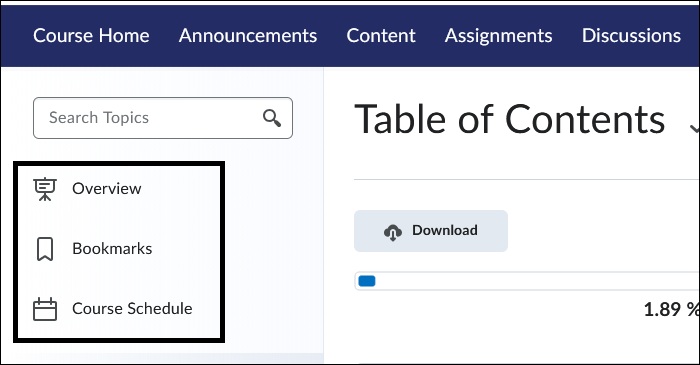
- Overview - an introductory section of a course that provides students with information about a class.
- Bookmarks - allows student to save quick links to frequently user course items. You can bookmark pages such as Content modules, assignments, quizzes or discussions so they are easy to access later.
- Course Schedule - lists upcoming assignments, quizzes, discussions, and other key events with their due dates. Note that instructors have to use the Due Date setting for items to appear here. Make sure you are checking all of Content for important dates.
- Table of Contents is the main navigation area within the Content page. It displays all the course modules and individual topics within it. Instructors can organize their modules by weeks with dates, by topic or units. Each course could be organized in a different way, so it is important that you familiarize yourself with each module and the contents within it.
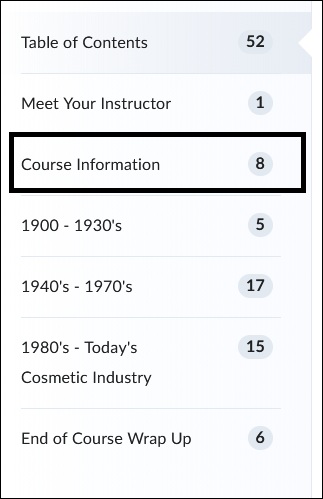
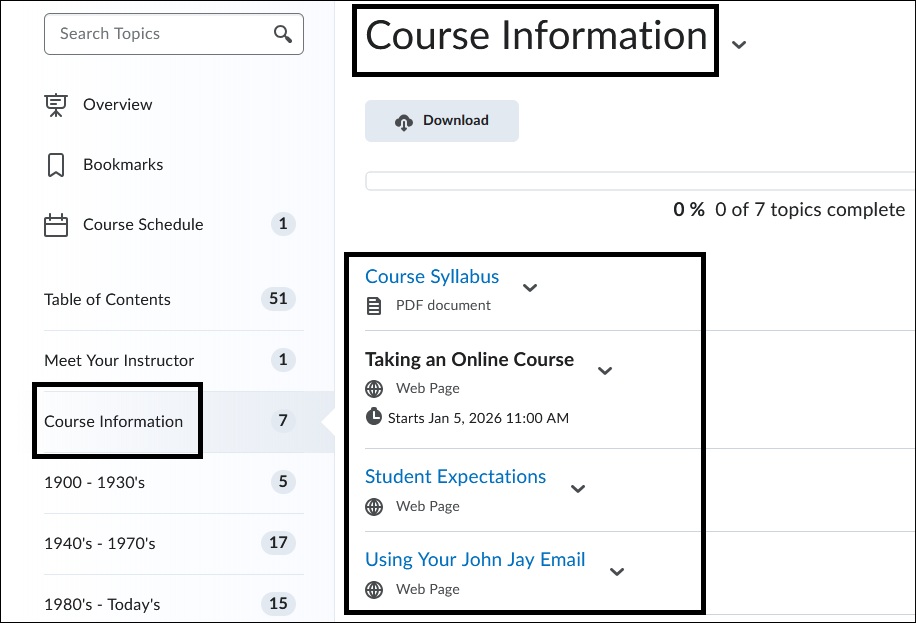
4. Select the Module Name to view the specific topic items within it. Note that instructors have the ability to date restrict modules and topics which will display Topic items in black font and not clickable to access further information.
Assignments
Assignments in Brightspace is where you’ll find and submit your course work. You can see instructions and due dates, upload your files, and check that your submission went through. It’s also where you’ll receive feedback and grades from your instructor, helping you stay on top of your work.
View Assignments in Brightspace for more information.
Quizzes
Quizzes in Brightspace is where you complete tests for your course. You can see instructions, time limits, and your scores, and sometimes get instant feedback. It’s a way to check your understanding and track your progress throughout the class.
View Quizzes in Brightspace for more information.
Discussions
Discussions in Brightspace is where you connect with your classmates and instructor by sharing ideas, asking questions, and responding to posts. You can participate in class conversations, reflect on course topics, and learn from different perspectives. This space helps make the course more interactive and engaging.
View Discussions for more information.